Homebuyer Home Report is a guided, monthly email for clients who don't yet own a home. It replaces the standard equity-and-market content of the homeowner Home Report with a step-by-step homebuying journey — budgeting, home search, savings, pre-approval, and agent support — so you and your paired agent stay top of mind through the entire path to a first purchase.
What's Included in a Homebuyer's Home Report?
Each Homebuyer Home Report guides your client through the following:
- Your Journey progress tracker (Agent, Budget, Search, Savings, Pre-Approval, Tour)
- Net worth growth estimate for their target city
- Home search with saved searches and listing alerts
- Saved Homes
- Build Your Savings Plan calculator
- Affordability Calculator (Know Your Budget)
- Pre-Approval request
- Homebuying Basics education hub
- Agent pairing
- Home Tour contact form
Home Page
Your Journey
At the top of the dashboard, Your Journey shows your client where they stand in six steps: Agent Selected, Budget Set, Search Saved, Savings Plan Set, Pre-Approved, and Favorite Homes & Tour. A segmented progress bar fills in as each step is completed, and an Up next link jumps straight to the next recommended action. Once all six steps are complete, the card reads You're ready to make an offer.
Net Worth Growth Estimate
The first module a client sees is a personalized estimate: Buying in [City] could increase your net worth by ~$[amount], broken into loan paid down and market appreciation over five years.
Clicking the city name or ZIP code opens a switcher so your client can move the estimate to any of their saved-search cities, or add a new one. By default, the ZIP code is based on the ZIP code of the loan officer or agent who invited them.
Clicking Personalize this estimate takes them into the Affordability Calculator so the numbers reflect their own budget.
Please note: The net worth estimate is approximate and assumes a 10% down payment amortized over five years. It's meant to illustrate the general upside of buying, not to substitute for a personalized affordability calculation. |
Get Started
Below the estimate, your client's next step is shown so your client knows the next action tied to their current journey step — for example, Know Your Budget while on the Budget step, or Build your savings plan once the budget is set.
Connecting with an Agent
Clients can be added to Homebuyer Home Report without an agent already selected. Your client can choose from up to three of your paired agents (shown in random order if you have more than three). Agent selection is optional at first, but:
- If a client favorites a home with no agent selected, they'll see a friendly prompt recommending they pick one (they can dismiss it and keep favoriting homes).
- If a client clicks Schedule a Tour with no agent selected, they'll be required to choose one before continuing.
Once a client selects an agent, the choice is final — there's no way to change it from the client side — and the agent receives an email letting them know a client has chosen them for their home search. Loan officers can remove an agent's co-branding from a client's Home Reports.
💡 Helpful Tip: If none of your agents are paired to your account yet, the agent-pairing and Schedule a Tour options are hidden from your clients' Home Report until you add one. |
Search
Home Search & Filters
Clients can search for homes by area, with filters for price, bedrooms & bathrooms, and additional features. Clients can then sort results by Price/Sq. Ft., newest, or price. Listings that fall within a client's saved affordability show a green In Range badge, along with a popover reminding them how that range was calculated.
Map View
Clicking the Map icon switches from a grid of listings to an interactive map with price pins for each result. Clients can zoom in and out and click any pin to open that listing's details; clicking Grid switches back.
Saving a Search
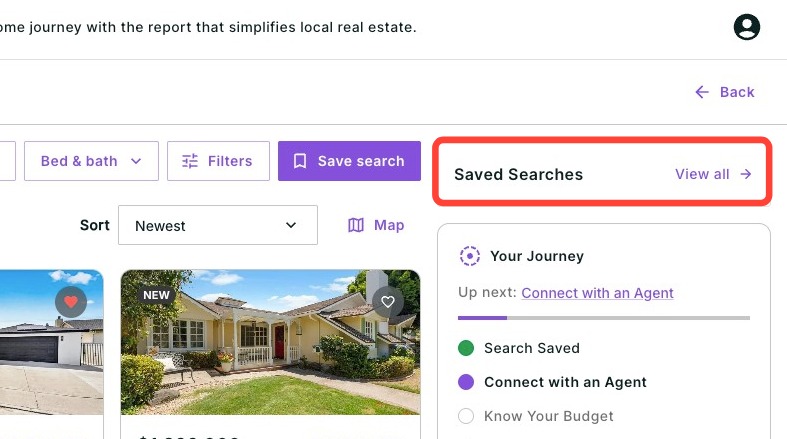
Clicking Save search instantly saves the client's current search area and opens a popover where they can rename it, adjust the area, and choose how often they're emailed about new matches: Daily, Weekly, Monthly or Never.
If your client wants to edit or update your previously saved searches, click View all in the Saved Searches box. From there, they can see every saved search, edit the search (area, price range, features, frequency, etc.) or delete the saved search.
Saved Homes
Favoriting any listing adds it to the client's Saved Homes. Clients can access this page under Saved Searches. From this page, clients can sort and filter their shortlist. Once every step of Your Journey is complete, this page also shows a Share With Your Agent button so they can send their favorite homes to the co-branded agent.
Budget
Know Your Budget is a affordability calculator that allows clients to calculate how much home they can afford based on how much they would like to pay as well as how much down payment they are expecting to put down. Once a client clicks Get your Affordability, it will calculate how much home they can afford based on the their budget, area, and an estimated interest rate. The area and interest rate are adjustable.
Build Your Savings Plan Calculator
Once a client has calculated their affordability, their down payment goal is set automatically however this can be adjusted. Clients can choose to adjust their down payment by percentage or dollar amount. They also will need to enter their current savings and monthly contribution to see a savings-growth projection, along with the date they're projected to hit their goal. The client has the option to include closing costs which is estimated as 3% of the home's price.
Please note: If a client hasn't calculated their affordability yet, the Savings Plan calculator prompts them to do that first so their down payment goal can be set automatically. |
Get Pre-Approved
Clicking the Pre-Approval step in Your Journey opens a modal where the client can request a pre-approval directly from you. Once they submit the request, you're notified, and the Pre-Approval step in Your Journey updates to complete.
If a client is already pre-approved, the client can click I already have a pre-approval letter. From there, they can enter their pre-approval date, approved amount, and any details they would like to include as a message to you.
Homebuying Basics
The Homebuying Basics hub organizes first-time buyer education into four chapters covering topics like saving for a down payment, with progress tracked and an estimated reading time remaining. A search bar lets clients jump straight to a topic (e.g., escrow, DTI, FHA loans), and a loan officer or agent contact card sits alongside the article list for quick questions.
Clients will be shown articles and financial tips throughout their Home Report which will take them to the Homebuying hub.
Tour Your Favorite Homes
Clients can request to tour the homes they favorited under the home search section with the co-branded agents. We will request their phone number, days and times they would like to tour the home(s), as well as additional notes they may want to share with the agent. The saved homes will appear at the bottom of the pop-out by clicking on the drop-down arrow.
Contact Form
Clients can reach out directly to the loan officer, agent or both, directly from their Home Report. They can choose who they'd like to hear from by clicking Email in the co-branding section of the Home Report. You'll be notified by email and text message so you can follow up.
The Client's Experience
Once you add a client to Home Report, they will receive an invitation similar to the one below with your branding and optional agent co-branding.
If a client is invited to Home Report via a sign-up link, they will land on a screen with two options: I own my home or I'm a future homebuyer. Selecting I'm a future homebuyer confirms their email and the areas they're interested in, then takes them straight to the First-Time Buyer dashboard — no property address required. Selecting I own my home instead routes them into the standard homeowner address-confirmation flow.
Viewing Homeowner Home Reports
Some buyers own one property while shopping for another. If a client's email matches a property you or their agent manages, their profile menu shows View Your Property (or View Your Properties, if they own more than one) so they can jump to that property's homeowner Home Report. From the homeowner side, a matching Search For Homes link takes them back into their buyer experience.
Buyers can also add a home they own by clicking Add your home. This will convert their Home Report into a Homeowner Home Report.
Home Report Email Frequency
The Homebuyer Home Report email is sent out once a month on the anniversary date of the initial invitation. Clients can pick and choose saved search emails based on their preferences when setting up the saved searches.
Profile & Email Settings
To access profile information and email settings, click the the profile icon and then click Profile & Email Settings. This opens a drawer from the right side of the screen. This drawer lets clients update their personal information and control which emails they receive.
Profile
The following fields are always editable:
- First Name
- Last Name
- Email Address
- Phone Number
Email Preferences
Clients can toggle the following on or off at any time:
- Saved Search Alerts
An Unsubscribe from all option is available at the bottom of the email preferences section for clients who wish to opt out of all communications at once.
Once changes are made, clients click Save to apply them. A confirmation will appear to let them know their updates were saved successfully.
Helpful Note: The email preferences link is still accessible from within a Home Report email and is available separately. The module described above is for managing preferences directly within the Home Report at any time.
Dark Mode Settings
Buyers also have the ability to turn on dark mode for their Home Report. If dark mode is already enabled in a buyer's computer settings, Home Report will automatically display in dark mode. Otherwise, clients can switch to dark mode manually by clicking the icon at the bottom of their Home Report emails as seen below.
Need Help?
Have more questions or want to learn more? Click here to submit a support ticket.