Home Report is an automated semi-monthly email that keeps your clients informed and engaged after closing. Stay front and center with clients by automatically delivering their home’s equity, value, and more, so that when life changes or rates drop, you are the first person they contact.
What’s Included in a Client’s Home Report?
Each Home Report contains pertinent information about your client’s home including:
- Purchase price and home loan information
- Automated valuation models
- Appreciation forecast
- Current equity
- Trade-up game
- Affordability calculator
- Area sales statistics and trends
- Homes for sale in the area
- Home stats (bedrooms, bathrooms, square footage, etc.)
- Homes pending sale in the area
- Market Insights
- Readiness to move score
- Equity widget
- Refi module
- Refi and new loan calculator
- Optional co-branding with agents
Each feature is separated into easy-to-navigate tabs: Home, Market, Tools, and Get In Touch.
Home
Estimated Home Value Appreciation
This module helps clients see how their home is appreciating and make informed decisions about future investments, renovations, or sale opportunities.
How do we make our estimates?
Our AVM (Automatic Valuation Model) comes from one of the country’s most reputable real estate data providers. Like all AVMs, we use a mix of historical data (home sales), current data (comparable listings), your home’s attributes (square feet, # of BR/BA) and forecasts. Our point value is taken between the middle and high end of a range of values (low-middle-high).
No AVM model can match the detailed knowledge of a local real estate professional. All AVMs struggle to capture ‘unusual’ properties (a house with a lake view), especially if there are few recent transactions.
Choosing Estimates
Your client can choose from a range of estimates or choose their own value, based on their personal knowledge of the area by clicking on the Confirm Your Loan Details. The AVM will automatically adjust with the new estimated value.
Loan officers and their paired agents can adjust the client's estimated home value by navigating to Home Report, clicking View for the client they would like to update, clicking the pencil icon and adding the home value in the Current Value field. Just remember to click Save!
Trade Up Game
Trade Up is a fun, interactive game that challenges your clients to test their knowledge of property values in their market. Clients select a base property and guess whether comparison properties are worth more ("trade up") or less ("trade down"). Each correct answer earns 100 points, and clients can track their personal high score across sessions.
The game is accessible directly from the Home tab on their Home Report page, and is also promoted in the Home Report and Market Report emails via a dedicated module.
How it works:
Clients click into the game and are taken to a start screen. Once they start, they'll play through 5 rounds, viewing details like photos, address, and specs for each comparison property before making their Trade Up or Trade Down call.
After 5 rounds, clients see their final score alongside their personal best. From there, they can choose to keep playing using their current property selected, change their property or change their area.
Readiness to Move Score
The Readiness to Move Score can be found both within the email body and on the Home Report landing page. The slider lets your clients select their time frame (on a scale of 1-5) for their next move.
The scores are as follows:
1 = Not anytime soon
2 = Considering a move in the future
3 = Planning something in the next 1-2 years
4 = Actively preparing a move
5 = Ready to make a move now!
If a consumer selects an initial score of 3 or higher, or moves their existing score to 3 or higher, Home Report will automatically email the lead owner (that’s you!). You can also use the table in the Home Report tab within your ListReports account to monitor changes and updates to this score.
If a client uses the slider to indicate their readiness to move, we will hide it from the email body for three months. However, it will always be available within their Home Report.
Equity Widget
The equity widget helps your clients explore ways they can pay back student loans, fund a home renovation, or finance their next vacation using their home's equity. Each example prompts clients to contact you to get started.
Market
Affordability Calculator
Clients can find the affordability calculator at the top of their Markets tab.
The Affordability Calculator makes it simple for clients to quickly gauge how much home they can afford by using two key inputs: desired monthly payment and down payment. We even make it easy for them to use their estimated proceeds from their existing home.
Once calculated, any listings under Market Trends For You that fall below the calculated price, will be marked with a green tag so your client can easily identify affordable homes.

Market Trends For You
Market Trends lets your client easily compare key real estate data across different cities and zip codes — including median list price, active listings, and days on market. They can also view active and pending listings on an interactive map.
By default, Market Trends is prefilled with zip codes near the property’s location. Clients can customize this to track up to five cities or zip codes they’re most interested in.
When a market is selected, the map and list of active listings below will update automatically. From there, clients can click into individual listings and reach out to you directly with questions. View the video below to see how:
Market Insights
Market Insights provides your clients with real-time market overviews, trends, and news, helping them make informed decisions based on current conditions, with three new articles added every Friday.
Tools
PMI Removal
The PMI Removal Widget appears when we can calculate that your client’s loan-to-value (LTV) ratio is at or above 80%. At this point, we display the widget to educate clients on how they may be able to remove Private Mortgage Insurance (PMI) and direct them back to you, their Loan Officer, for next steps.
Ways Consumers Can End PMI Early
The widget highlights the most common paths to removing PMI:
📝 Refinancing – Clients may refinance into a new loan once they have 20% equity, which can eliminate PMI and potentially lower their interest rate or monthly payment.
🏡 Appreciation – If the home’s value has increased, clients may be able to order an appraisal to prove they now have 20% equity.
💰 Extra Payments – Making additional principal payments reduces the balance faster, helping clients reach 80% LTV sooner.
🐢 Regular Payments – Simply continuing with scheduled payments will naturally lower the loan balance over time, eventually reaching the point where PMI can be removed.
Refi Module
The Refi Module is a dynamic tool that helps your clients understand when refinancing might be the right move. Based on your client’s current interest rate, they will see one of the following prompts:
Missing Interest Rate: If we don’t have an interest rate saved under their loan information, your client will be asked to provide it. If they don’t have a loan, they can check a box to indicate this, and we’ll save that preference.
Savings Opportunity: Using your client’s loan details, we’ll monitor for potential savings and show them how much they could save by refinancing, prompting them to contact you.
Close to Savings: If their interest rate is within 2% of potential savings, clients will have the option to opt in to alerts so they’ll be notified if a savings opportunity arises in the future.
Rate Lower than Market Rates: If their rate is already lower than the market, we’ll encourage them to reach out to you about HELOC options to make the most of their equity or to explore ideas in the Home Equity Module.
Rate Lower than Market Rates: If their rate is already lower than the market, we’ll encourage them to reach out to you about HELOC options to make the most of their equity or to explore ideas in the Home Equity Module.
Too Early to Refi: If it’s been less than 6 months, we’ll let them know it’s not refi time yet and guide them to equity options or the savings calculator instead.
Refi and New Loan Calculator
Below the module, you will find the Refi and New Loan Calculator. This lets the clients test new rates, terms, or balances to estimate savings. It’s a quick way to start the refinance conversation with roads leading back to you!
Early Payoff Calculator
Clients can easily understand the benefits of making extra payments towards their loan principal by using the Early Payoff Calculator within their Home Report.
- Interest Savings: This piechart illustrates the amount of interest saved over the life of the loan by making the extra payments. In this case, an additional $200 per month results in a total interest savings of $106,418 and 5.8 years of fewer payments. The filled portion of the piechart shows the proportion of interest saved compared to what would have been paid without the extra principal payments.
- PMI Savings: This section shows how making extra payments towards the principal of the loan can help you achieve 20% of home equity (80% LTV or lower) and the savings your client could realize by removing PMI in this way.
- Timeline: This section helps clients see key milestones in their home ownership journey including how soon they could see PMI removal and total Home Ownership if they begin making additional payments today.
Get in Touch
Contact Form
This contact form makes it easy for clients to reach out to you and/or your co-branded agent, whether they’re planning a move, curious about their home’s value, or exploring ways to save.
Clients can select who they want to contact, share what they need help with, and add a custom message for context. It’s a quick, direct way to start a conversation and get connected with the right person.
Be sure to keep an eye on your inbox! Messages from this form are typically serious inquiries from your clients. We will send both an email and text message* to you.
*Text message will be sent to you if you have a mobile phone number saved in your profile.
The Client’s Experience
Once you send the invite, clients will receive an email from you to subscribe to their Home Report (see example below).
By clicking See Your Home Report, the client will be taken to their personalized Home Report page with a welcome message or introductory video, and provides your client the ability to confirm their property address and email address.
Clients Managing their Home Report Account
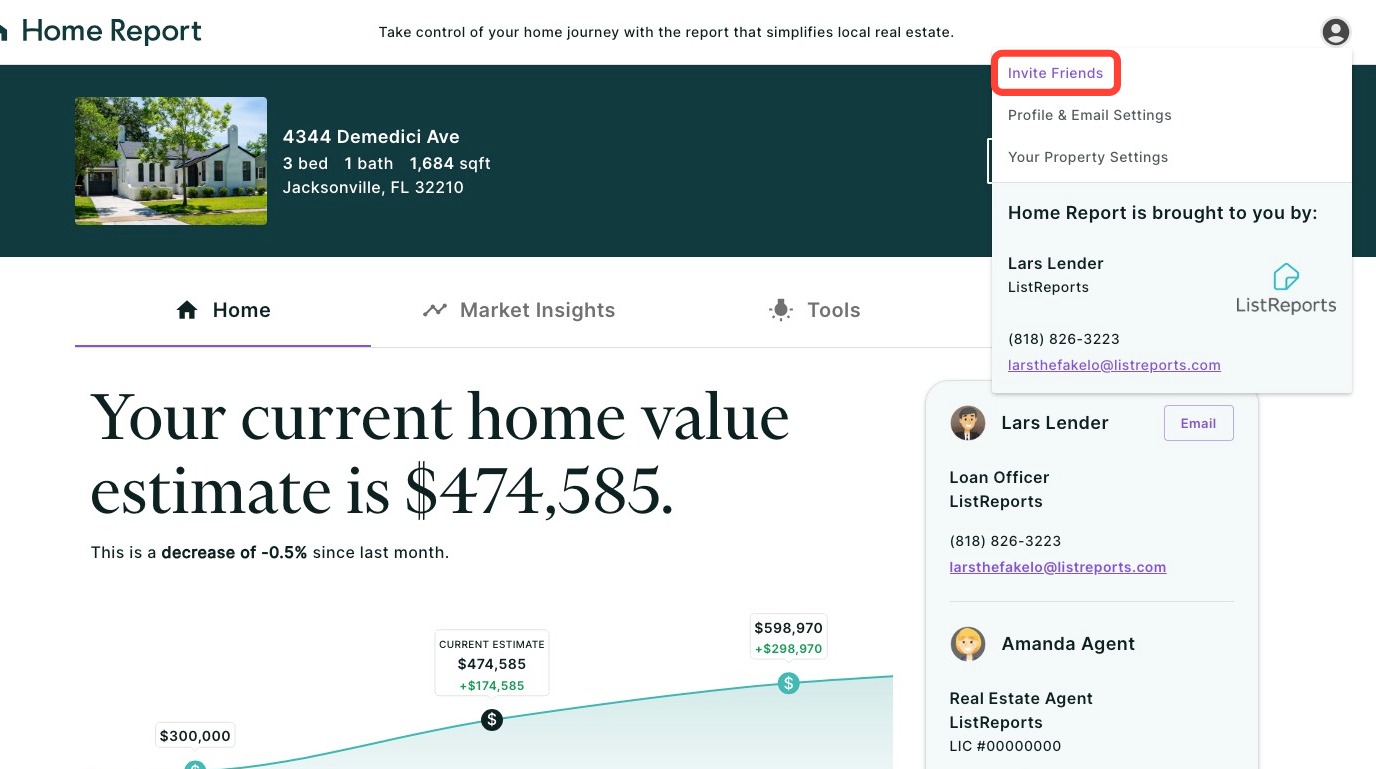
Home Report gives your clients a dedicated space to manage their personal information, property and loan details, and email preferences — all in one place. Clients can access their account settings at any time by clicking their account icon in the Home Report header, which opens a popover with links to their profile and settings.
Invite Friends
Clients who are subscribed to Home Report have the ability to invite friends and family to receive their own Home Report directly from their account. They can access this link by clicking the account icon and then selecting Inviting Friends.
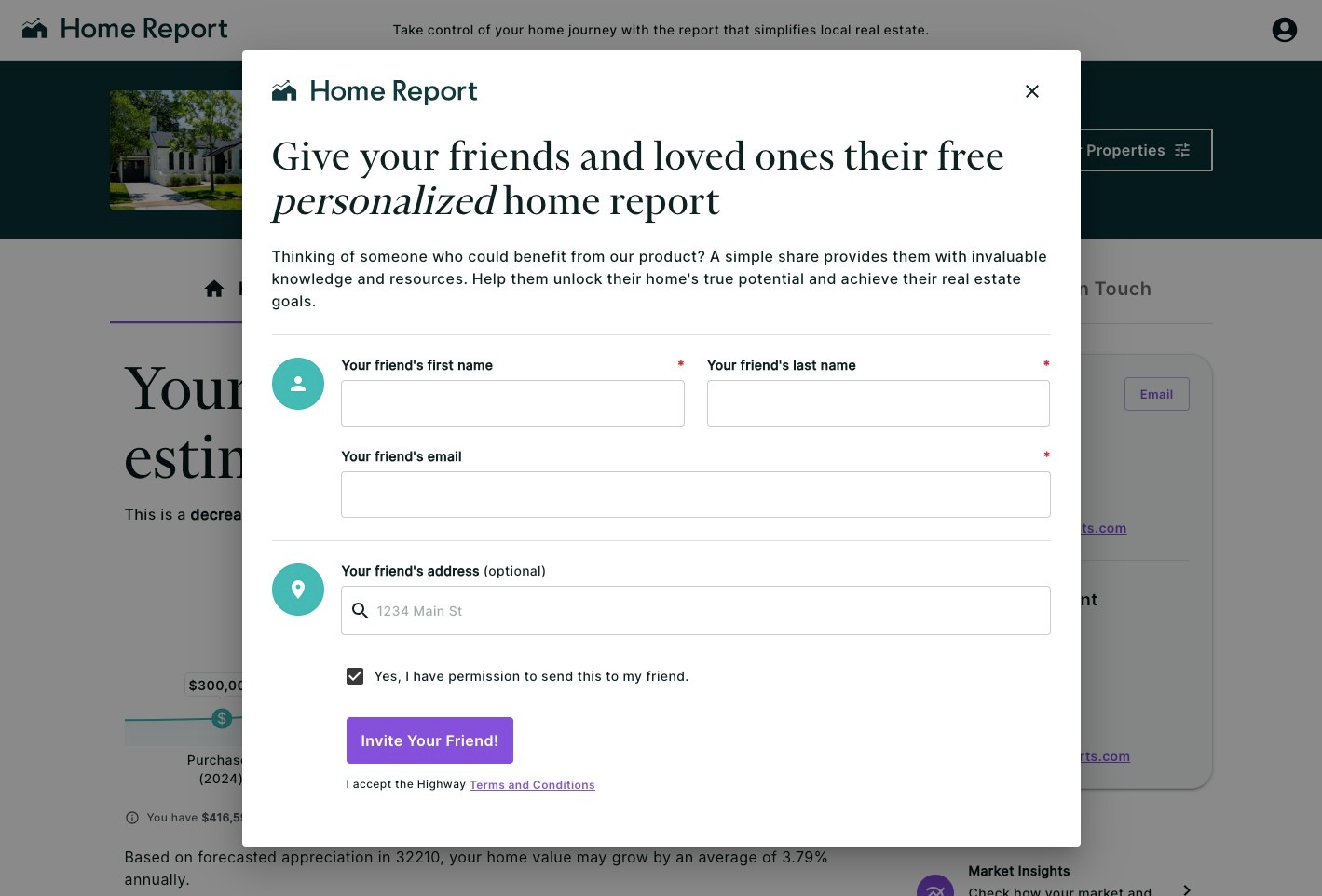
Clicking Invite Friends opens a modal where clients can send an invitation to someone they know. This is a great way to help your referral pipeline grow organically — when a client's friend or family member opts in, it creates a new lead connected back to you.
Profile & Email Settings
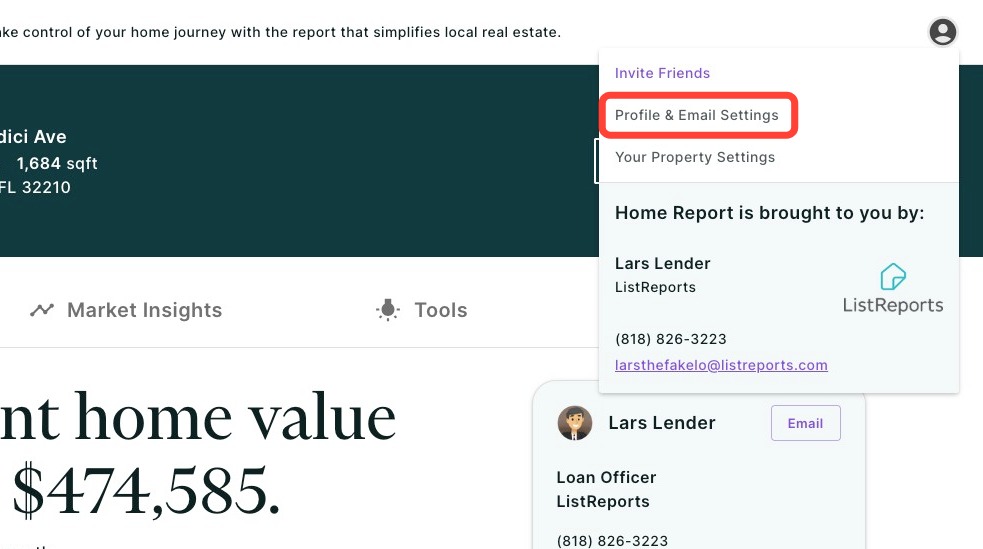
Clicking Profile & Email Settings in the account popover opens a drawer from the right side of the screen. This drawer lets clients update their personal information and control which emails they receive.
Profile
The following fields are always editable:
- First Name
- Last Name
- Email Address
- Phone Number
Email Preferences
Clients can toggle the following on or off at any time:
- Home Report: The recurring semi-monthly home value and market email
- Market Emails: Monthly market updates
- Refinance Alerts: Notifications when a rate savings opportunity arises
- Year-End Review & Announcements: Occasional product and market updates
- Home Anniversaries: A yearly email celebrating your client's home purchase
An Unsubscribe from all option is available at the bottom of the email preferences section for clients who wish to opt out of all communications at once.
Once changes are made, clients click Save to apply them. A confirmation will appear to let them know their updates were saved successfully.
Helpful Note: The email preferences link is still accessible from within a Home Report email and is available separately. The module described above is for managing preferences directly within the Home Report at any time.
Property & Loan Information
Clients can also view and update their property and loan details from the account popover by clicking Property & Loan Information. Keeping this information current ensures their Home Report data — including equity estimates, refi calculations, and AVM values — reflects their actual situation.
Multiple Properties
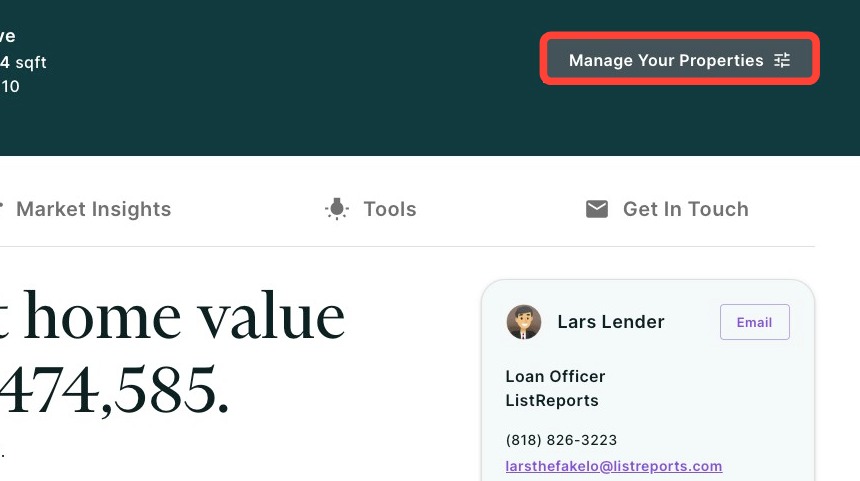
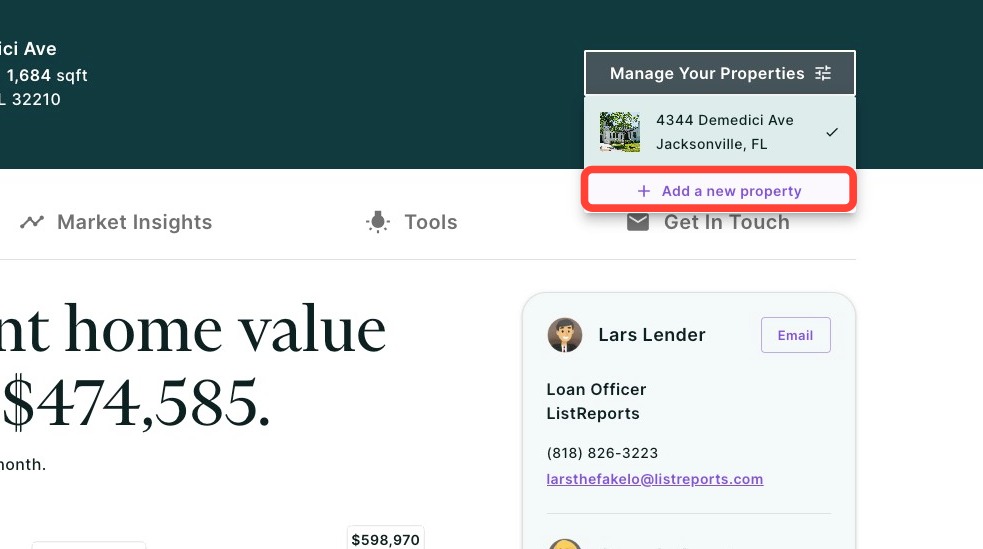
Home Report is designed to support clients with more than one property — whether that's a primary residence, an investment property, or a vacation home. Client can add new properties by clicking Manage Your Properties seen below. Properties are linked together when multiple addresses are associated with the same client email address and loan officer, so everything stays connected automatically.
Switching Between Properties
On desktop, clients will see a Manage Your Properties button at the top right hand corner of the green banner of their Home Report. Clicking it opens a dropdown showing all of their associated properties, each with a thumbnail image, street address, and city/state. The currently active property is marked with a checkmark. Clicking any other property navigates directly to that property's Home Report.
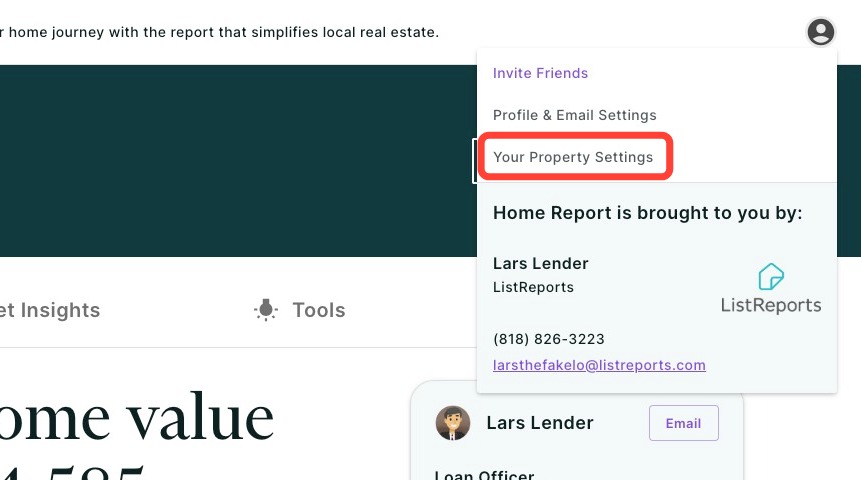
On mobile, the Manage Your Properties button is not shown in the hero section. Instead, clients can switch properties by tapping their account icon in the header, selecting Your Property Settings from the account popover, and then using the Current Property dropdown to select a different property.
Updating a Home Photo
Clients can personalize their Home Report by uploading a photo of their home. Once added, the photo appears in the Home tab hero image, under the Your Property Settings drawer, and in their Home Report emails.
Adding a Photo for the First Time
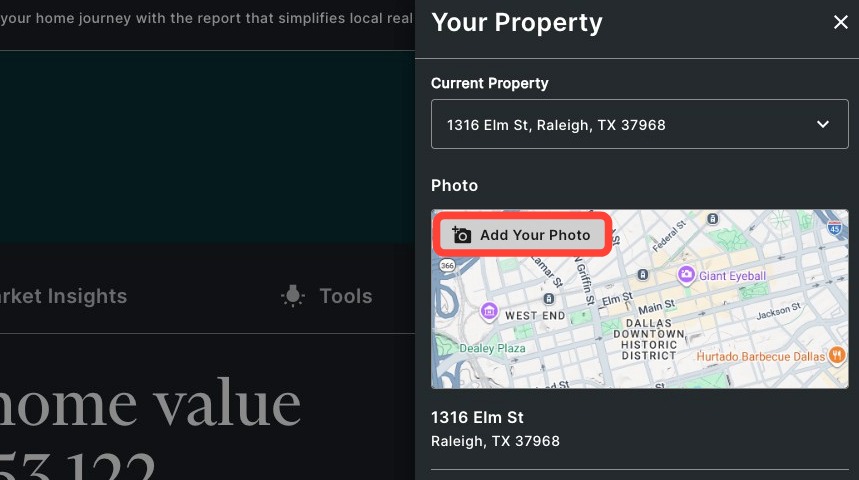
By default, the property image area displays a terrain map view of the home's neighborhood. To upload a photo, clients can either click the pencil icon on the Home tab hero image, or click Add Your Photo within the Your Property drawer (accessible from the account popover in the header).
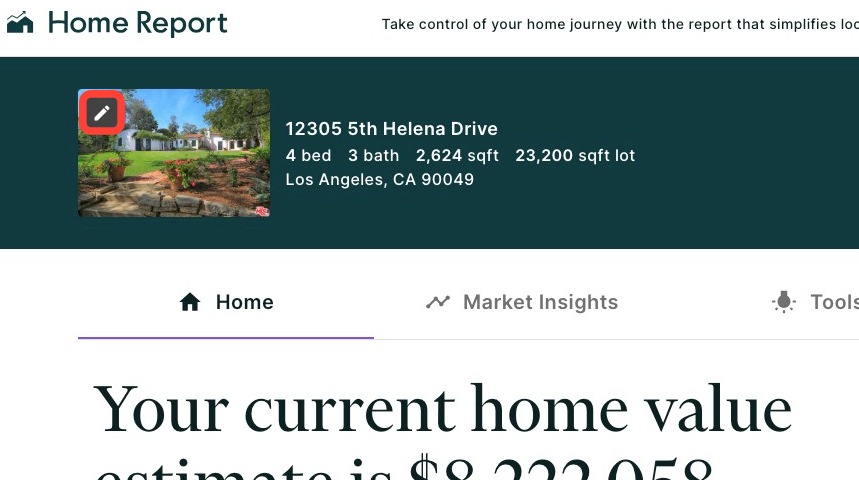
From there, your client can choose a JPEG, PNG, and HEIC/HEIF file with a maximum file size of 10 MB. After selecting a valid photo, a preview will appear immediately in the drawer. The photo is not saved until the client clicks Save.
Changing an Existing Photo
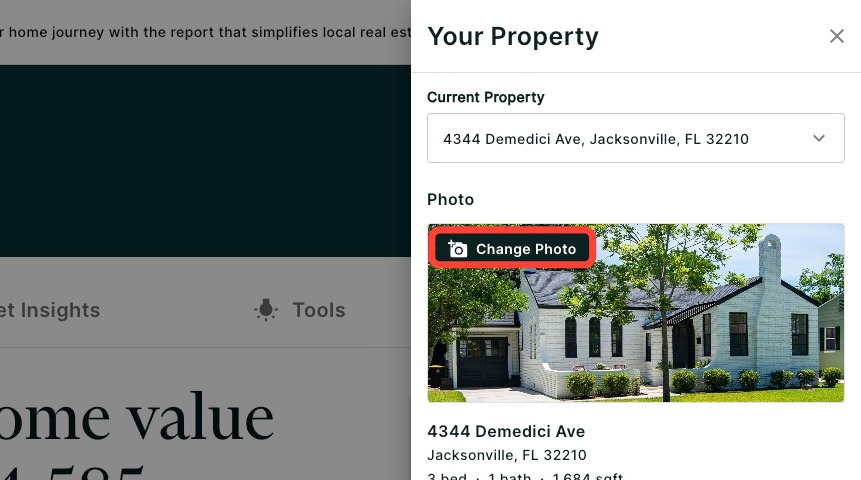
Once a photo has been uploaded, clients will see a Change Photo button overlaid on their current image in the drawer. The process is the same — select a new file, review the preview, and click Save to apply the update.
Note: Clients can replace their home photo at any time but cannot delete it entirely — only swap it for a new one.
How to See a Client's Home Report
To see a client's Home Report:
1. Click on the Home Report tab.
2. Click your client's property address found in the Home Report column.
A full-sized preview of their Home Report will then be displayed.
Home Report Email Frequency
By default, your clients will be emailed a Home Report email twice per month: on the anniversary of the initial email invitation and 15 days later highlighting the available homes in the area. Below is an example of both emails, respectively.
Monthly email sent on the anniversary of their invitation:
Semi-monthly email highlighting local market activity sent 15 days after:
Dark Mode for Clients
Clients also have the ability to turn on dark mode for their Home Report. If dark mode is already enabled in a client’s computer settings, Home Report will automatically display in dark mode. Otherwise, clients can switch to dark mode manually by clicking the icon at the bottom of their Home Report emails as seen below.
Still need help or have questions? Submit a ticket here.
Related to