In this article, you will learn how you can add your clients to Home Report using our pre-loaded transactions or by manually adding a client.
Accessing Home Report
To get started, navigate to Home Report by clicking Home Report in the left hand navigation menu.

Adding Pre-loaded Clients
When opening your Home Report tab for the first time, you will see your past clients already populated within the table. Watch the video or follow the instructions below to enroll these clients in the Home Report.
1. Click Invite in your client's corresponding row.

2. Add their email address and make any desired updates to your client's info including:
- First Name
- Last Name
- Phone*
-
Address
*Optional field not required to send a Home Report.
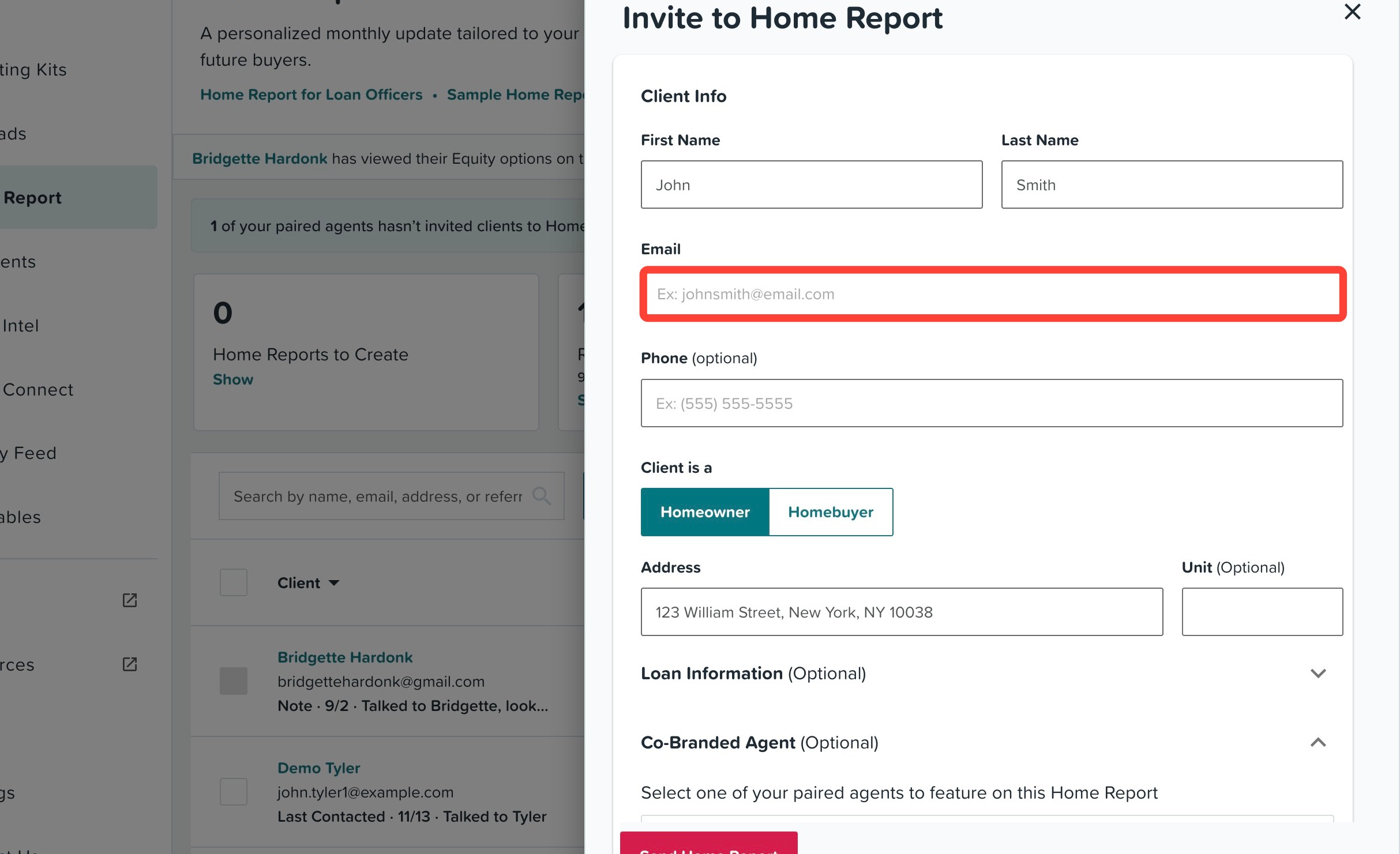
3. Optional Loan Information: If the data is available, we will pre-fill your client's loan information. You can add, edit, and review the information we have by clicking the dropdown shown below:
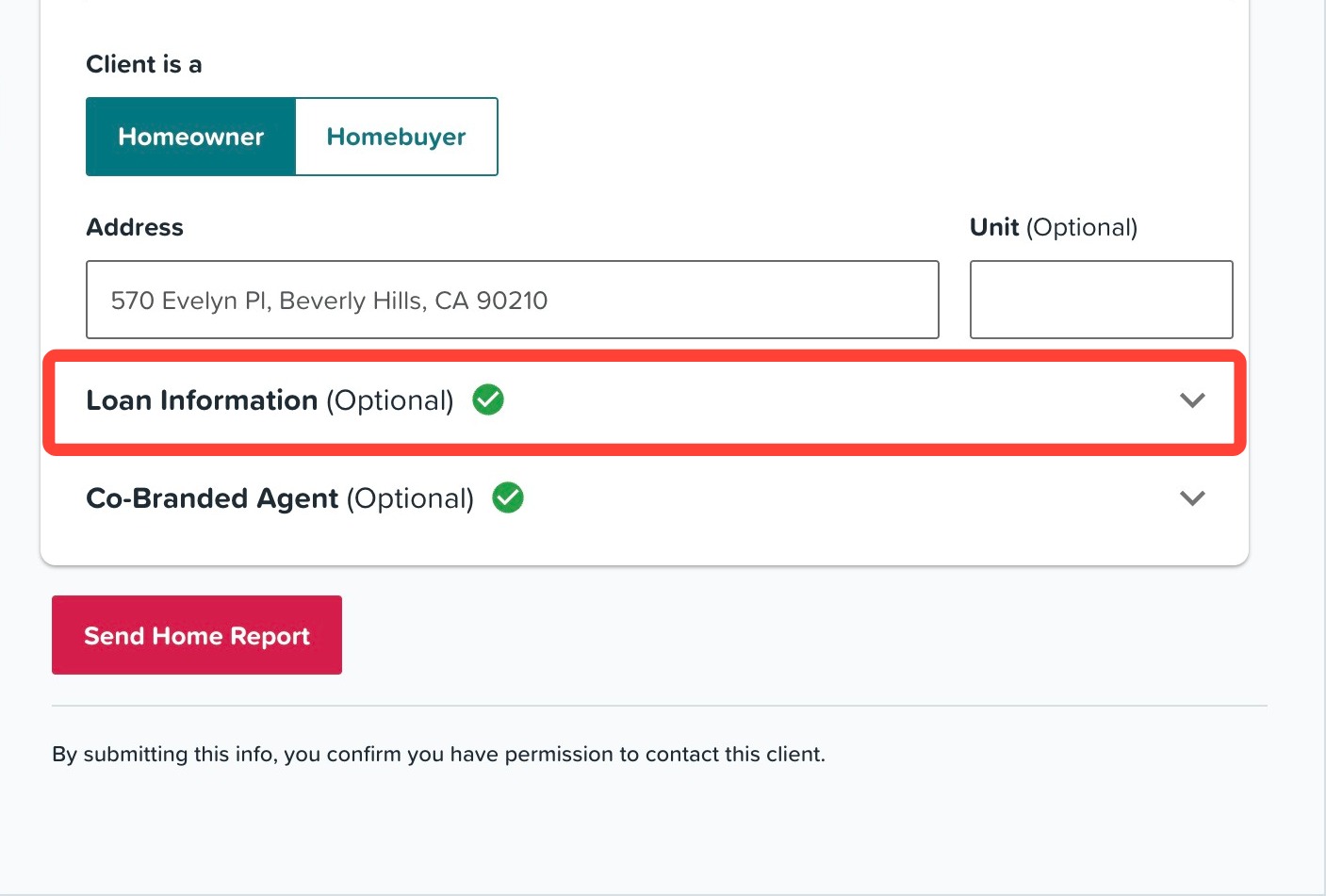
You can update original purchase information such as:
- Original Purchase Date
- Loan Term
- Rate %
- Loan Type
- Loan Amount
- Purchase Price (not recommended for refinance options)
- Current Value
- Strike Rate*
*Available for MBS Highway Loan Advisor subscribers.
If your client had a refinance, you can also add loan details about the refinance by checkmarking the "This is a refinance". The following fields will then be available to fill in:
- Refinance Date
- Loan Program
- Loan Amount
- Loan Term
- Rate
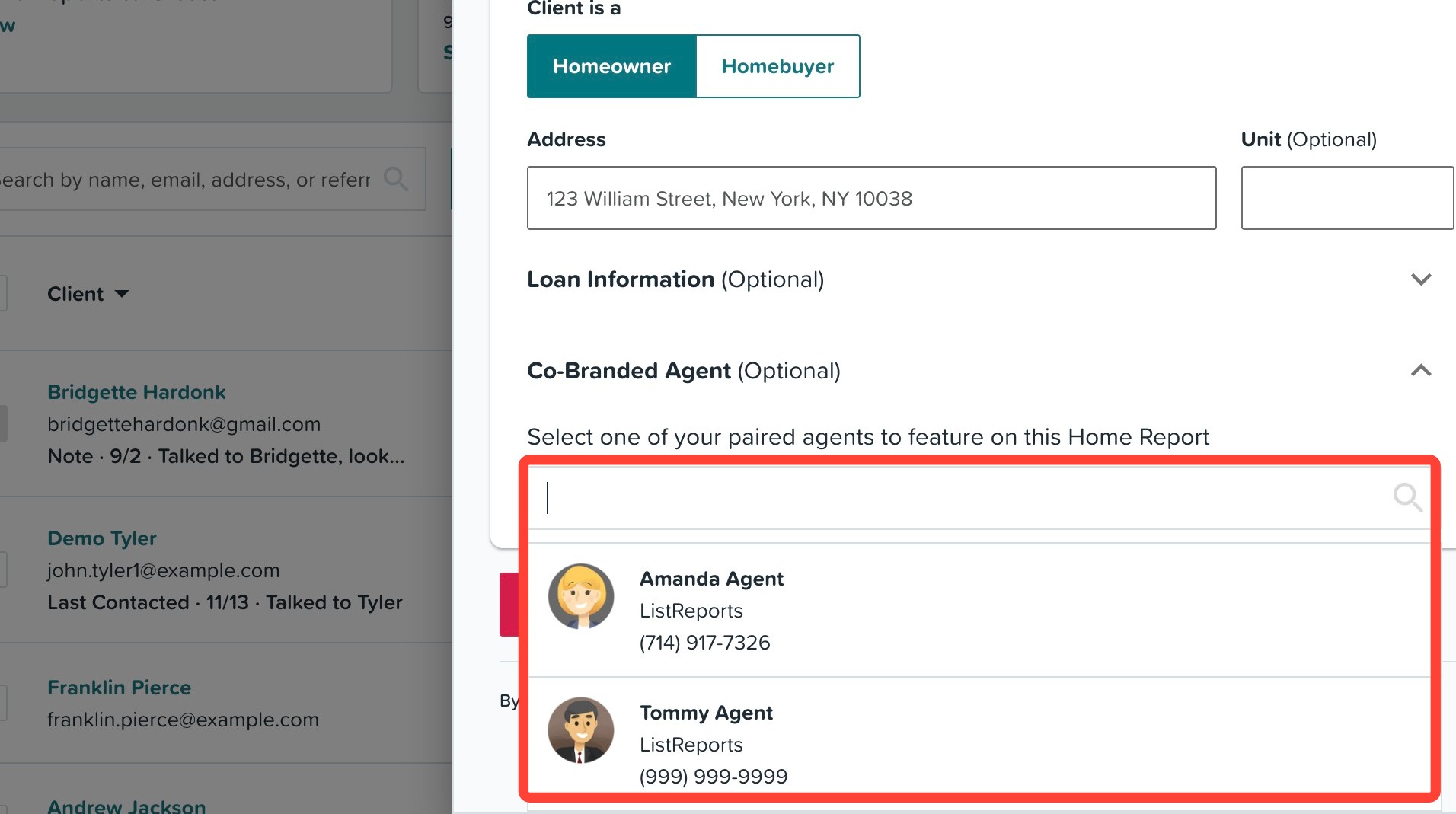
5. Optional: You can also select a paired agent to co-brand with you on Home Report from the drop-down below. To learn more about co-branding with agents, click here.
6. Once you have finished making your edits, click Send Home Report.
How to Add Individual Clients
To add individual clients not already in your Home Report table, follow the instructions below:
1. Click the Add Clients dropdown.

2. Click Add Individual.

3. For current homeowners, make sure you have Homeowner toggled on and enter your clients First Name, Last Name, Email, and Address.
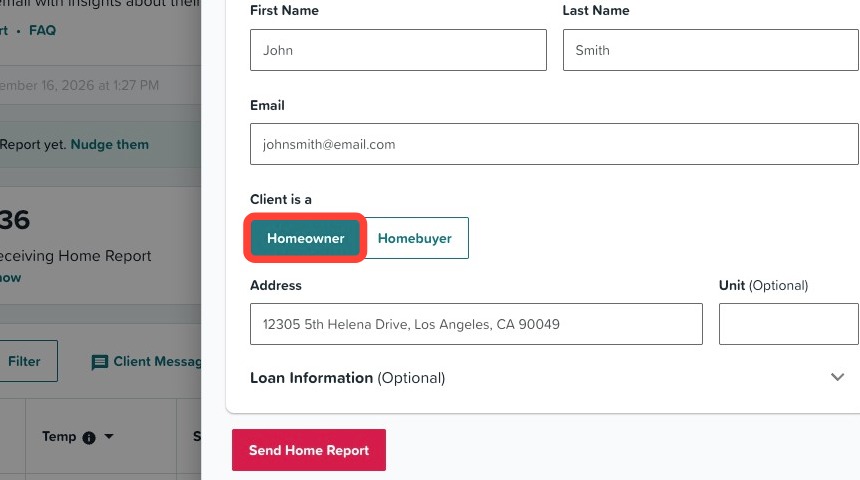
4. For homebuyers who do not own a home, toggle on Homebuyer and add your client's First Name, Last Name, and Email.
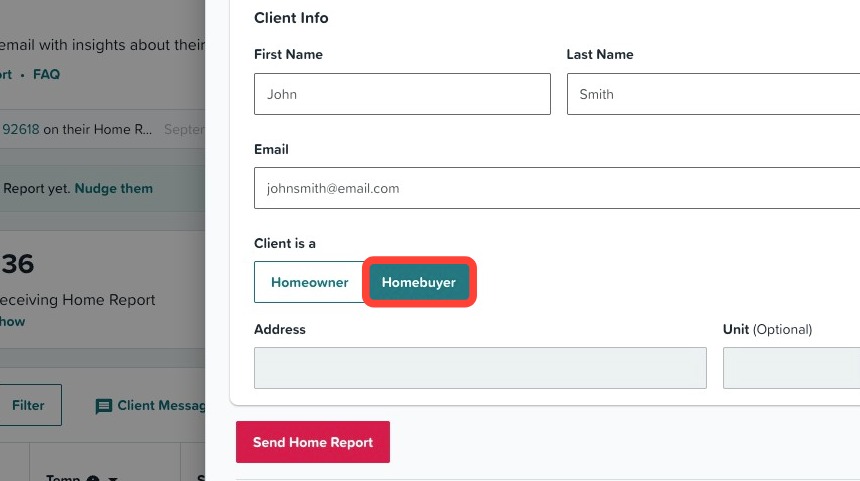
4. Optional: For clients who are homeowners, if the data is available, we will pre-fill your client's loan information. You can add, edit, and review the information we have by clicking the dropdown seen below.
5. Optional: You can also select a paired agent to co-brand with you on Home Report from the drop-down seen below. To learn more about co-branding with agents, click here.
6. Click Send Home Report.
Prospect New Clients Using Your Invite Link
Share Home Report beyond your clients using your personal invite link. This will bring your clients to a signup page where they need only provide their name, email and property address (for homeowners only) to sign themselves up for their own Home Report. Keep reading to learn how to start sharing your invite link:
1. Click Share my invite link.

2. Next, choose how you'd like to share your link. Here are a few easy ways to get it in front of more people:
- Copy Link: Add your link to your email signature, your Instagram bio, or your website so new clients can easily sign up for their Home Report.
- Download QR Code: Print your personalized QR code on flyers, business cards, door hangers, and more.
- Text to Self: Send the link to your phone, making it simple to copy and paste into text messages to your contacts.
- Share on Social Media: Choose from several engaging images in the Shareables tab to quickly share your invite link with your network on social media.
When your prospective client clicks on your invite link, they will land on your branded page that allows them to choose if they are a homeowner or home buyer as seen below:
Sign-up Flow for Homeowners
Prospects can then add their address and preview their Home Report and finally sign-up by adding their name and email address. You will also see them appear in your Home Report tab so you can monitor their activity and provide the appropriate follow up.
Sign-up Flow for Home Buyers
Prospects can then finish signing up by adding their name, email, and the areas they are interested in purchasing a home. You will also see them appear in your Home Report tab so you can monitor their activity.
Need Help?
Have more questions or want to learn more? Click here to submit a support ticket.