Home Report now makes it easier to keep track of your conversations with clients. For easy reminders you can add a general note or log a contact so you know the last time you contacted a client. You can also quickly see your latest entry on the main Home Report dashboard. This article walks you through where to find these options, how to add an entry, and how to filter your clients by when you last reached out.
Contact Logs vs Notes
You can now add two types of entries to a client in Home Report:
- Contact log: A quick record of the last time you called or emailed your client. You can choose the date of the contact, and add optional text is for context.
- Note: A general note about your client, e.g. what they are looking for or a reminder for later.
Please note: Notes and logged contacts are not shared between you and your co-branded partner. Anything you log in your account is only visible to you, and anything your co-branded partner logs is only visible to them. |
Viewing Notes and Contacts in the Home Report Table
When a client has a note or contact log, the most recent entry appears directly beneath their name and email in the Client column of your main Home Report table. Each entry starts with a label and date so you can tell what it is at a glance:
- Last Contacted · [Date]: A contact log
- Note · [Date]: A general note
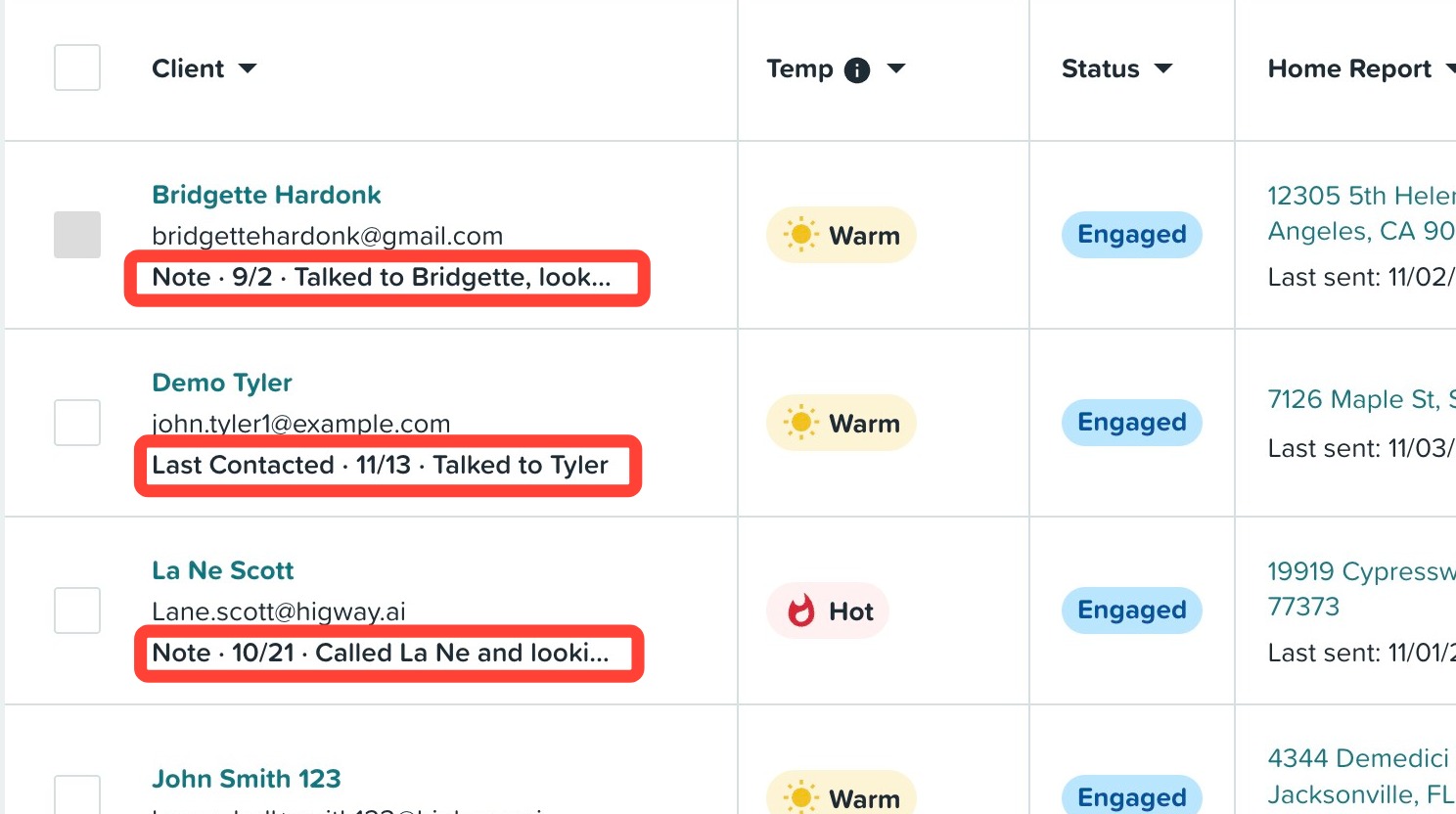
If a client has both a note and a logged contact, the table shows the contact log, even if you added a note more recently. This keeps your latest outreach front and center.
Hover over the preview to see the full entry in a tooltip. Click the preview text to open the client's profile drawer, where that entry is expanded and ready to read.
Adding a Note or Logging a Contact
There are two ways to add an entry from the main Home Report table. Both open the same window where you can enter either a note or log a contact.
Using the Client Column
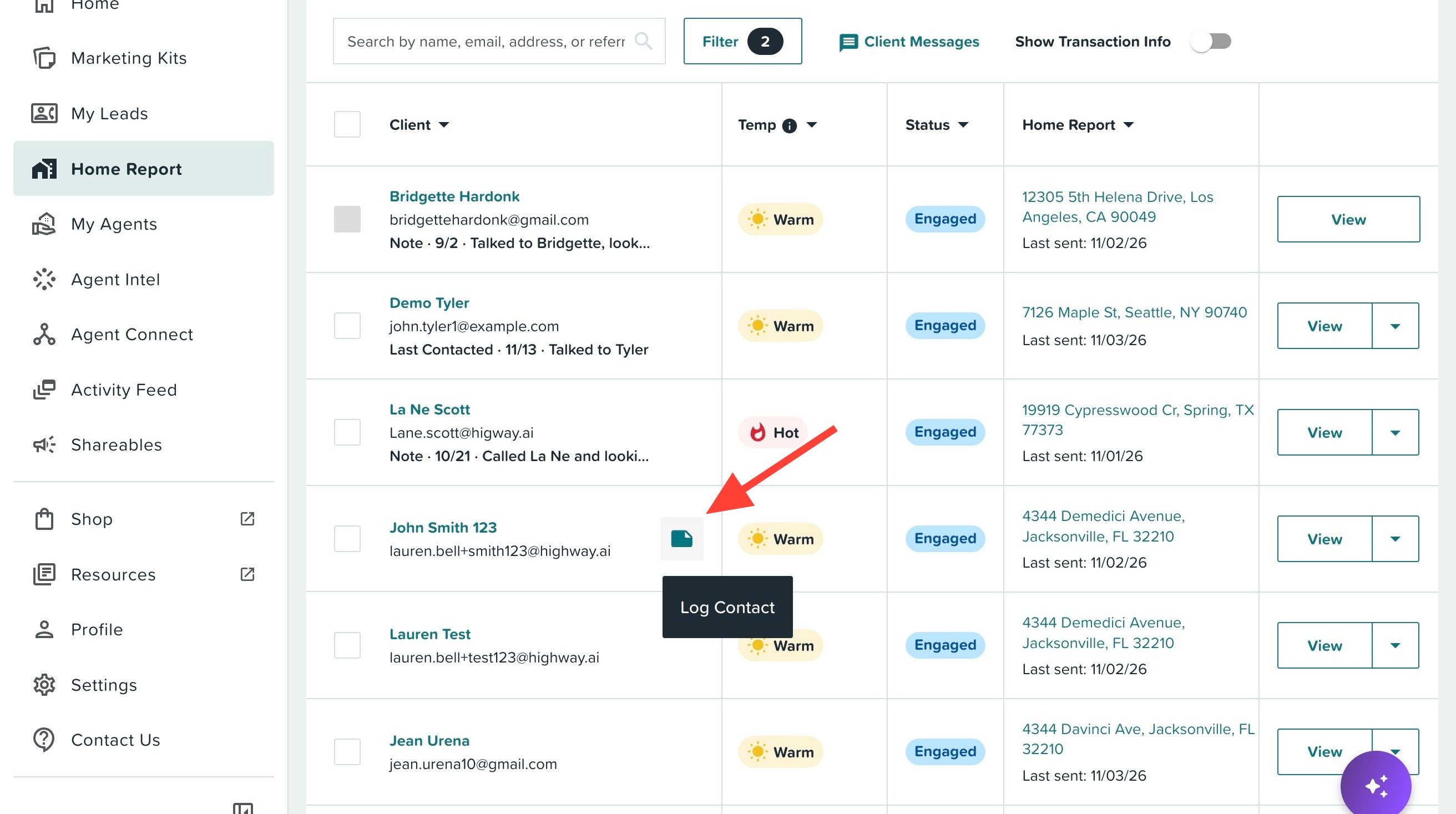
If a client does not have any notes or contacts logged yet, hover your mouse over their name and email to reveal a Log Contact icon as seen below. Click it to open the log contact/note entry window.
Using the View Menu
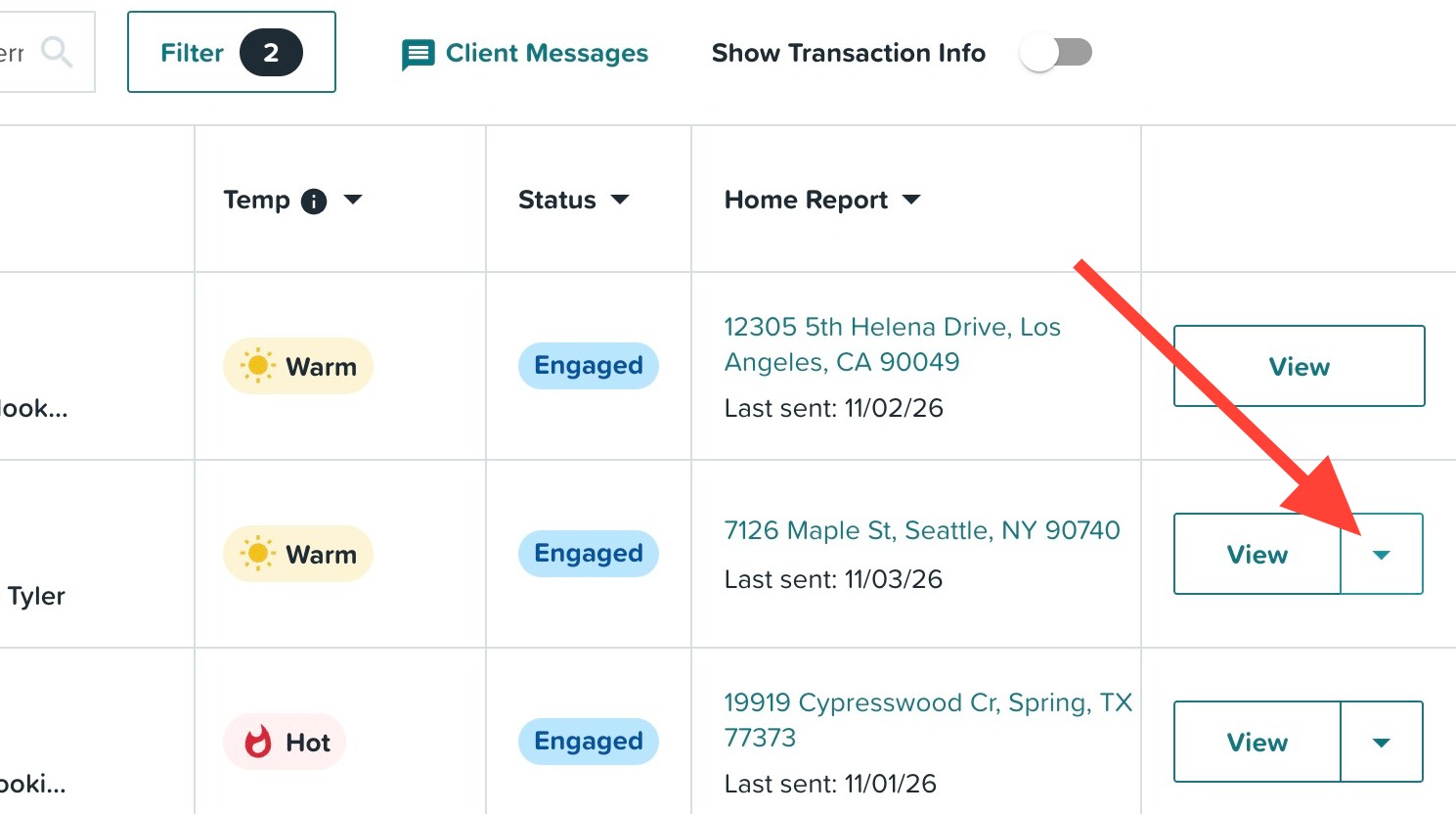
You can add an entry for any client, whether or not they already have one, from the View button's dropdown menu.
- Find your client in the Home Report table.
- Click the dropdown arrow.
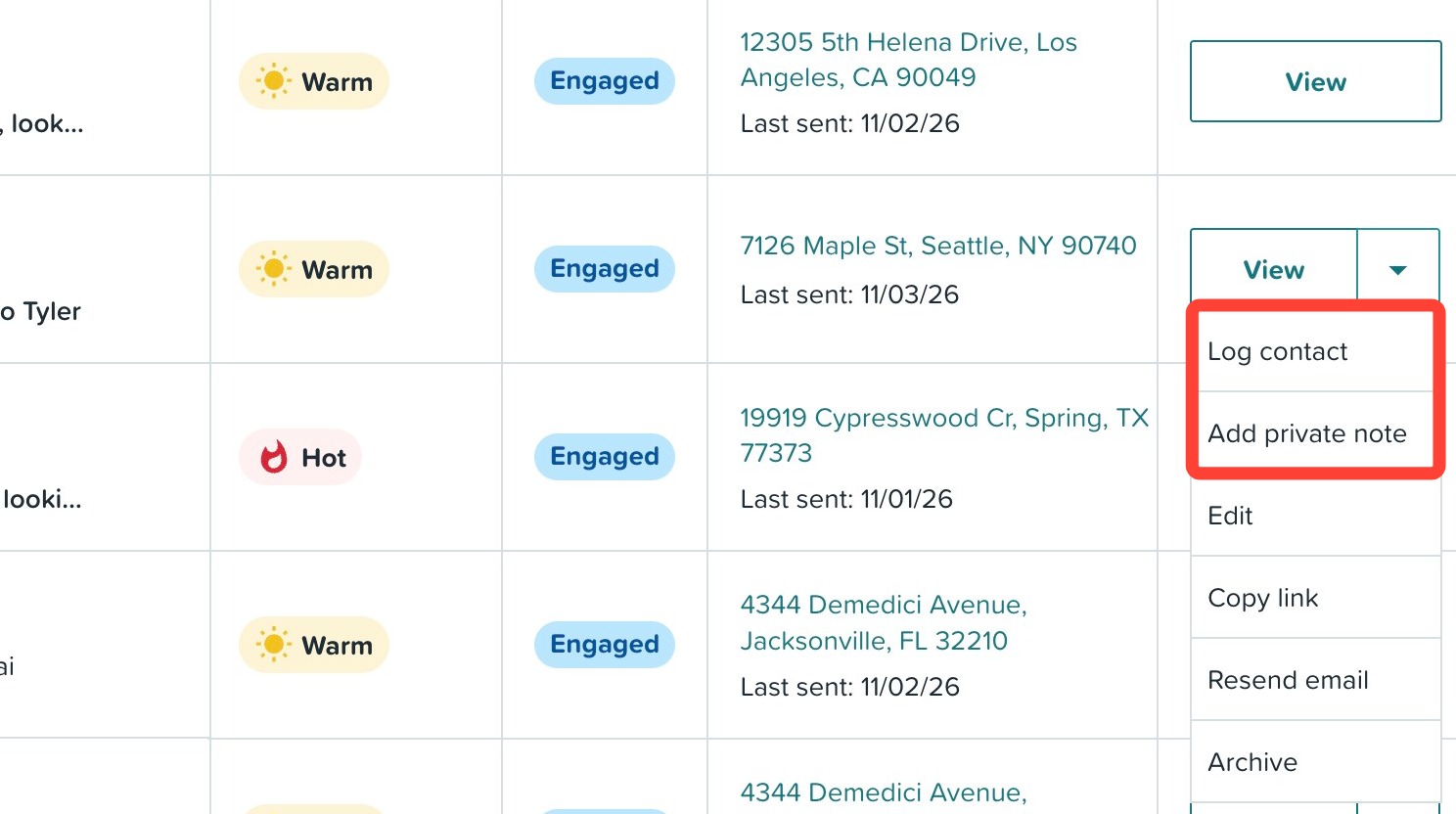
- Click Log contact to record a contact, or click Add private note to add a general note.
Completing the Entry
- Choose Contacted or Note at the top of the window.
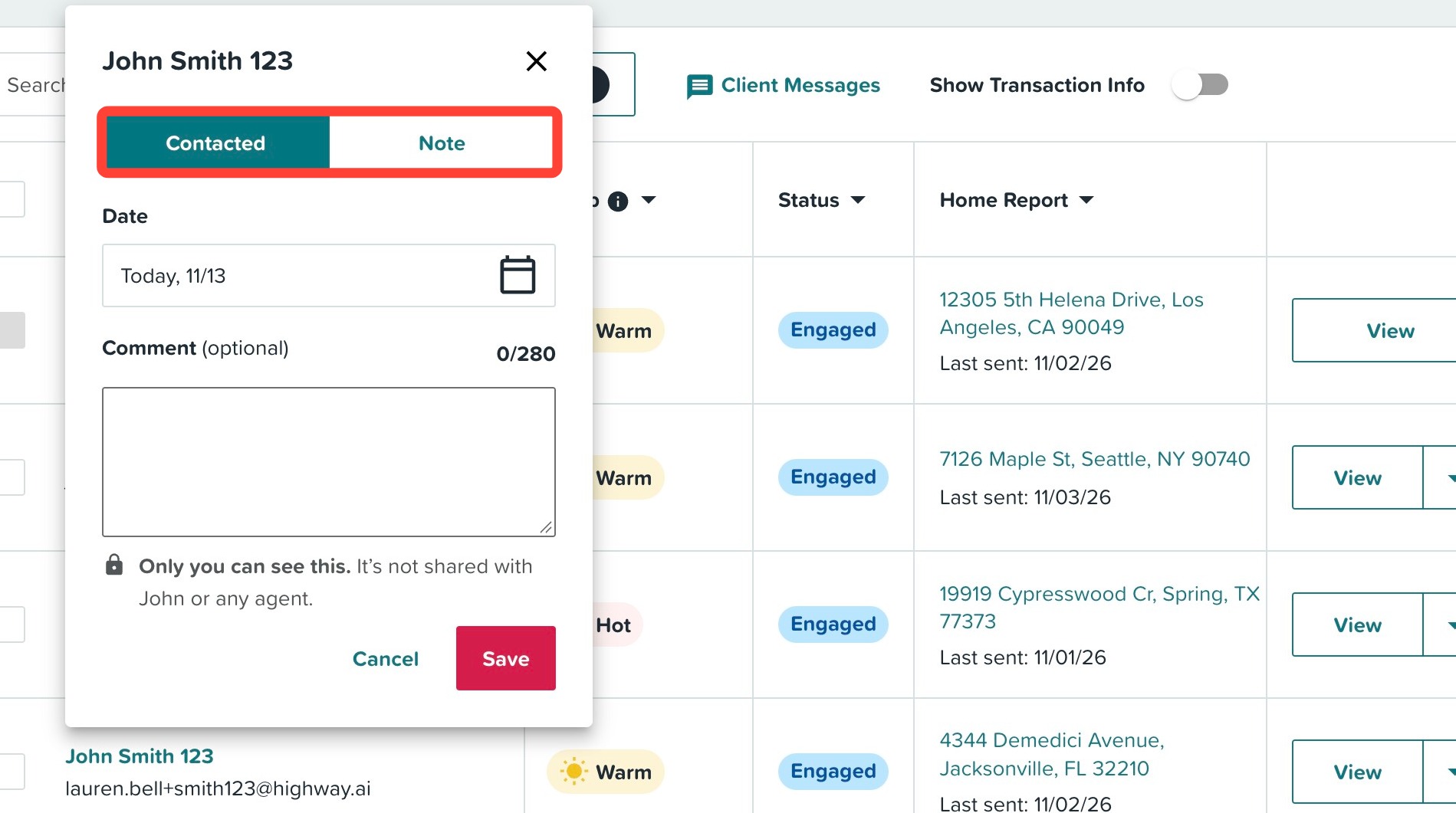
- If you chose Contacted:
- The date defaults to today. To change it, click the date field and select the date you reached out from the calendar.
- You can also add optional text in the comment box.
- If you chose Note:
- Add your required text.
- The date will automatically save as today's date and cannot be changed.
- Click Save.
You will see a confirmation message ("Your contact has been logged" or "Your note has been saved"), and your new entry appears right away under the client's name in the Client column.
💡 Helpful Tip: Forgot to log a recent call or email? Use the date picker to backdate your contact log. |
Adding Entries from the Client Profile Drawer
You can also add notes and contacts from a client's profile drawer. Open the drawer, then use either of these options:
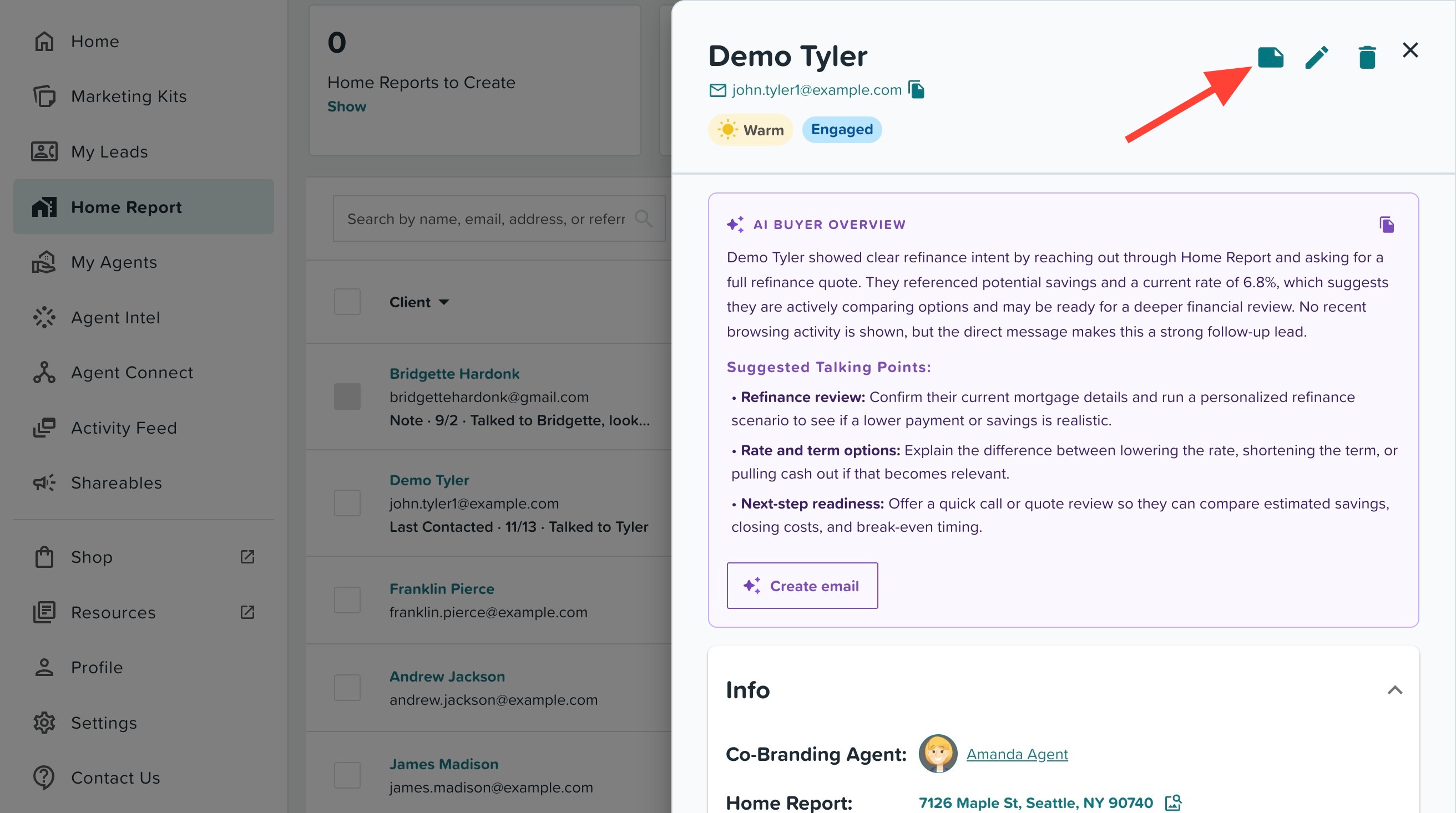
- Click the Note icon at the top of the drawer.
- Click the + Add note link in the middle of the drawer.
Note icon at the top of the drawer
+ Add note link in the middle of the drawer
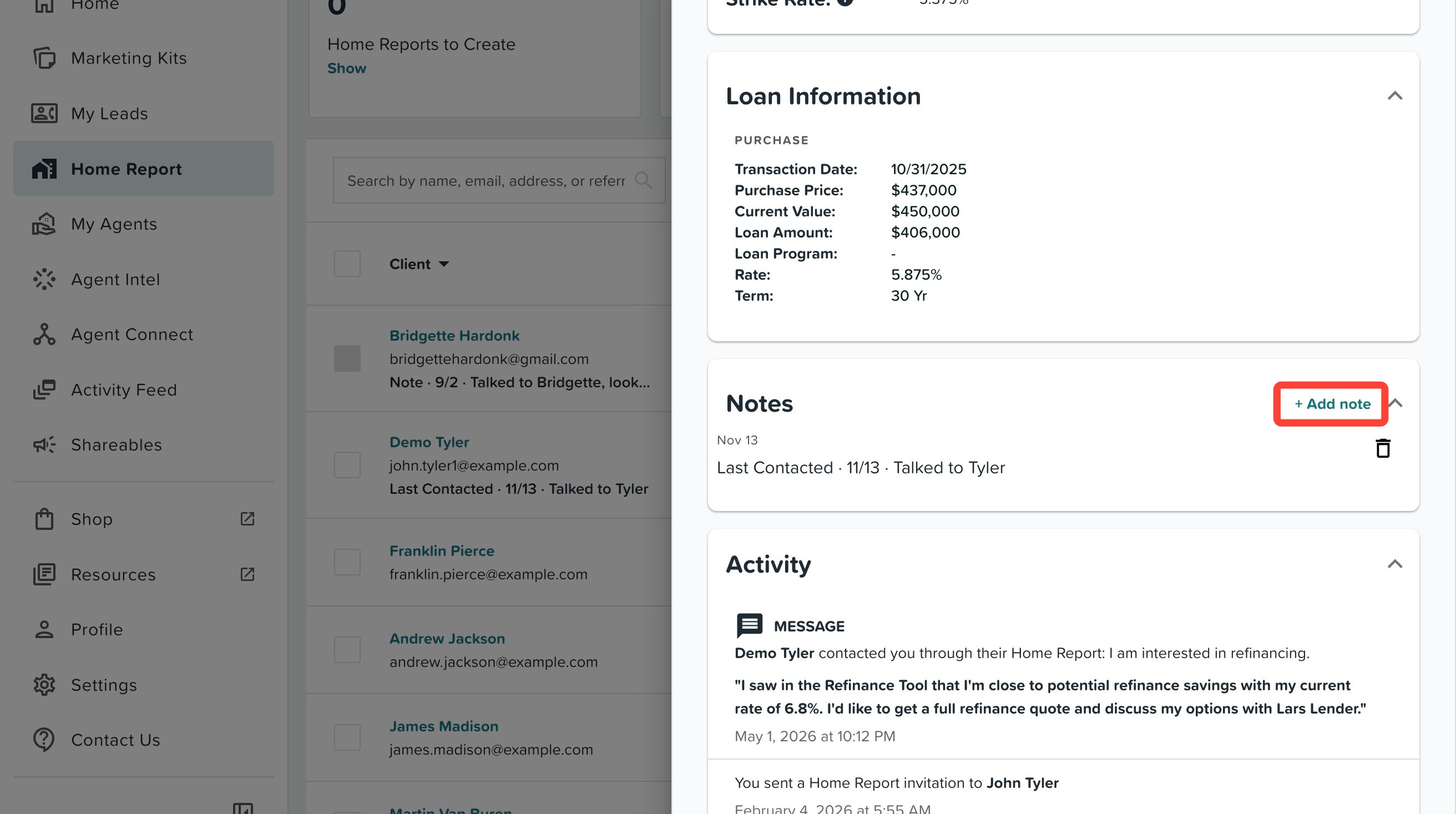
Both open the same entry window described above, so you can choose between Contacted and Note. Existing entries in the drawer display the same Last contacted and Note labels under the Notes section.
Filtering by Last Contacted
Use the new Last Contacted section in the filter drawer to find clients that may need a follow-up. You can choose from:
- No contact logged: Clients that do not have a contact log. This includes clients with no entries at all, as well as clients that only have notes.
- Within 30 days: Clients you logged a contact for in the last 30 days.
- Over 30 days: Clients whose most recent logged contact was more than 30 days ago.
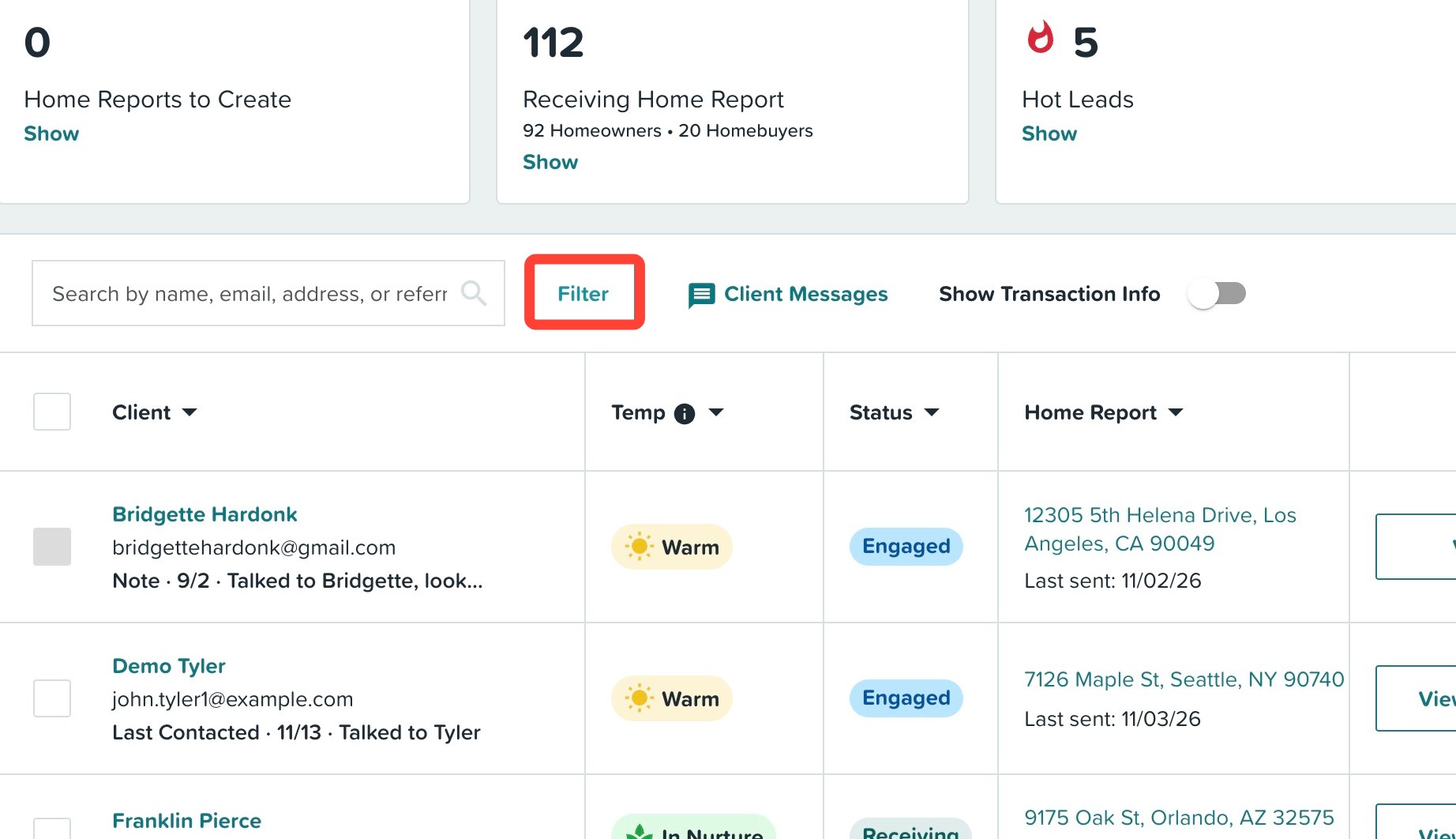
To use these filters, follow the steps below:
- Click Filter.
- Select one or more of the Last Contacted filters.
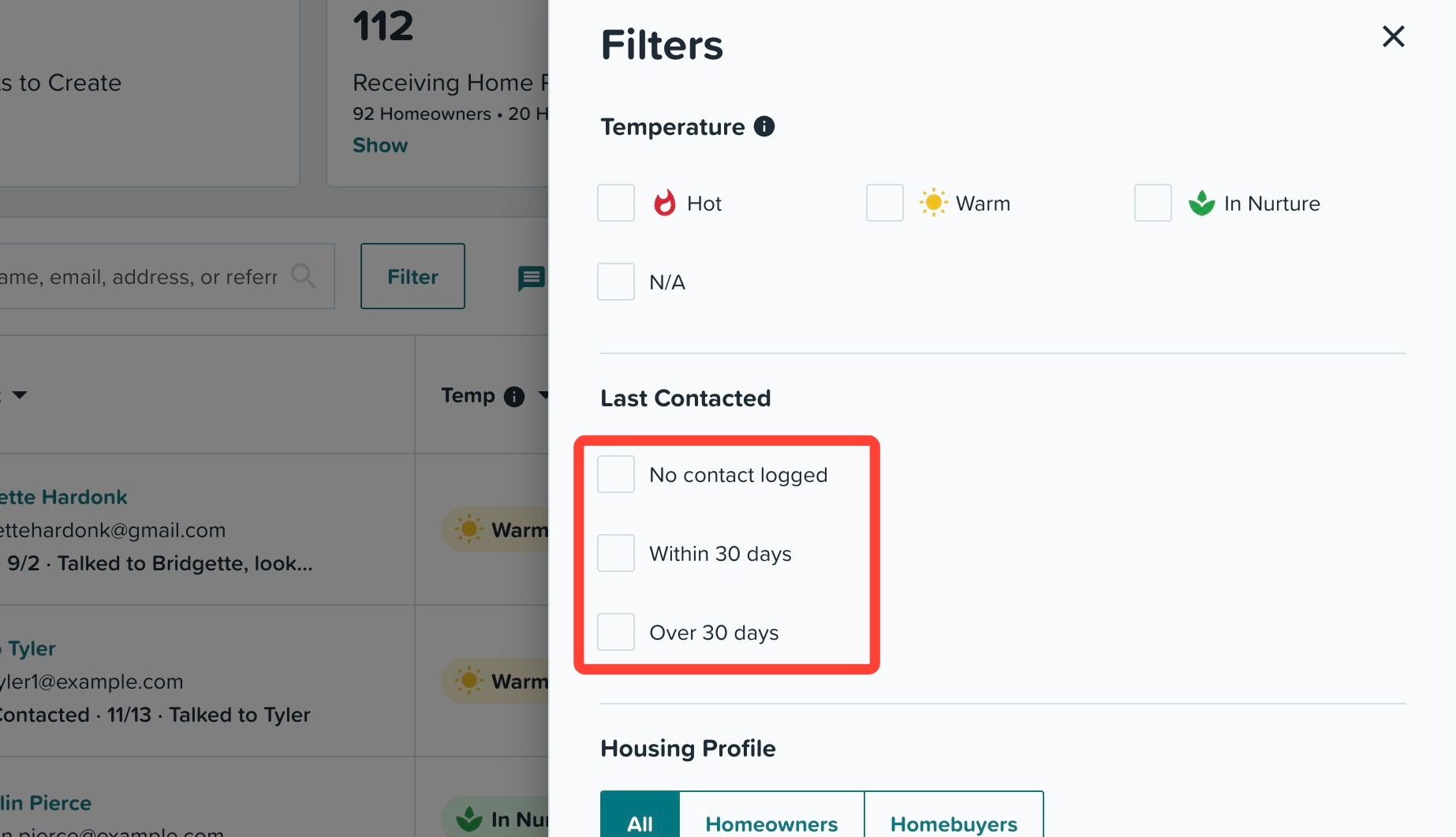
- Click Apply.
💡 Helpful Tip: Start your week by filtering for Over 30 days to quickly see which clients are due for a check-in. |
Need Help?
Have more questions or want to learn more? Click here to submit a support ticket.
Related to