This guide shows you how to use the AI-powered Smart Email feature to send personalized, contextually relevant emails to your contacts directly from your contact list.
Before you get started:
- Make sure you have at least one client receiving a Home Report
- Your default email application is configured on your device. To learn how to set up your default email application, click here.
How to Send a Smart Email
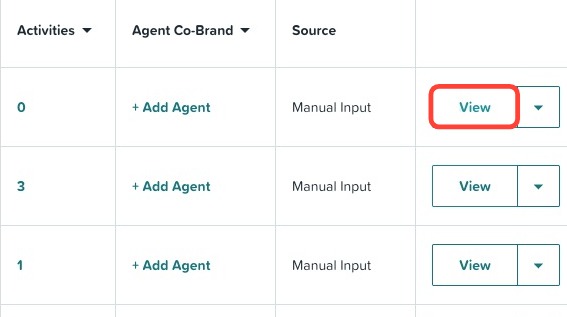
1. Locate the client you would like to reach out to and click the View in their row.
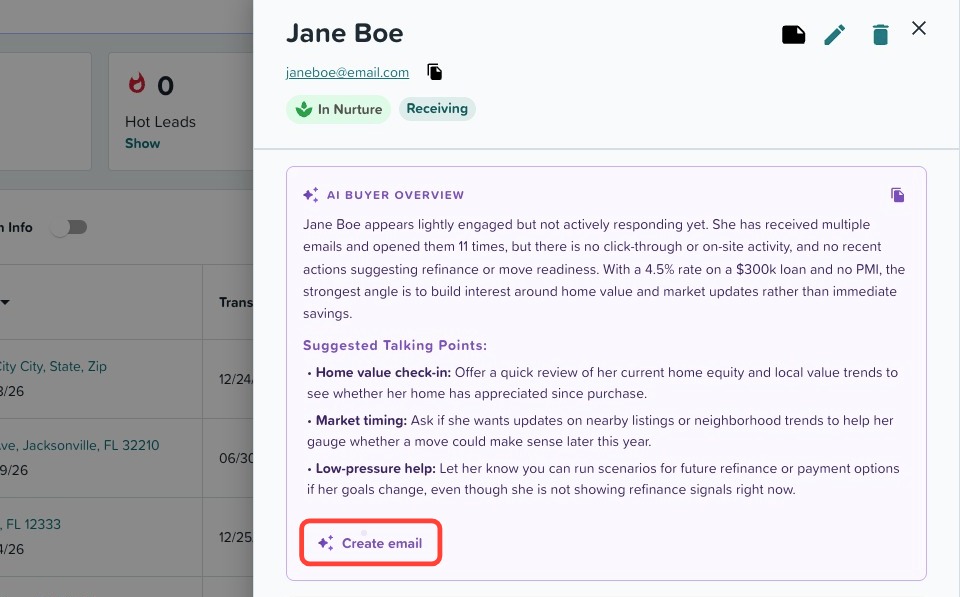
2. Once inside their profile, an AI Buyer Overview will generate. When you're ready, click Create email.
3. If your default email application is configured, click Use in my email.
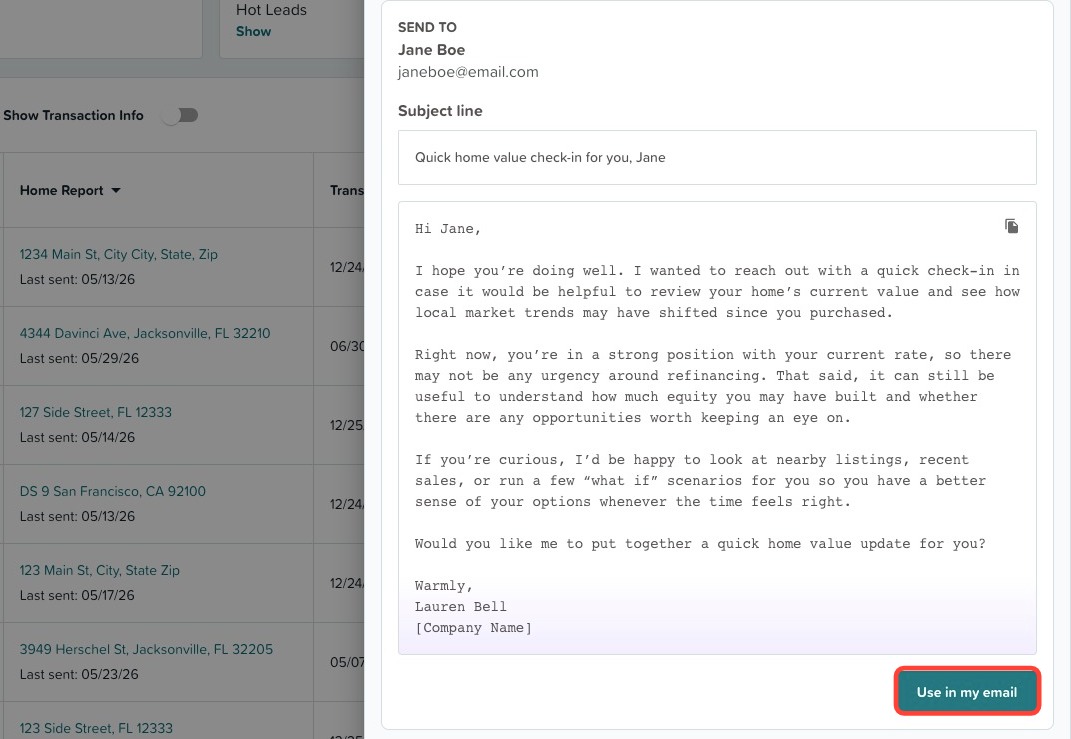
4. Your default email application will then open. Review the message, make any personal edits, and send when ready.
5. If you'd prefer to send from a different email client than your default application, or if you don't have a default email configured, you can manually copy the content instead. To do so, click the copy icon, as seen below.

Need help? Check out how to configure your default email application here. For any other questions, reach out to our support team by clicking here.
Related to