If the email button in your client's AI Overview within Home Report isn't opening your email client, your device likely doesn't have a default email application configured. In this article, you will find different ways to configure your email application and troubleshoot, so that you can begin contacting your clients using our AI-powered emails directly from your own email.
How This Works
The email button uses a standard "mailto" link, which tells your operating system to open your default email client and pre-populate a new message. If no default email client is set, nothing will happen when you click the button.
Fix It: Set a Default Email Client
Follow the instructions for your operating system or preferred email provider below.
Windows
To set your default email client inside your Windows OS, use the detailed instructions below or visit Windows' help site for additional help: How to set a default email client in Windows.
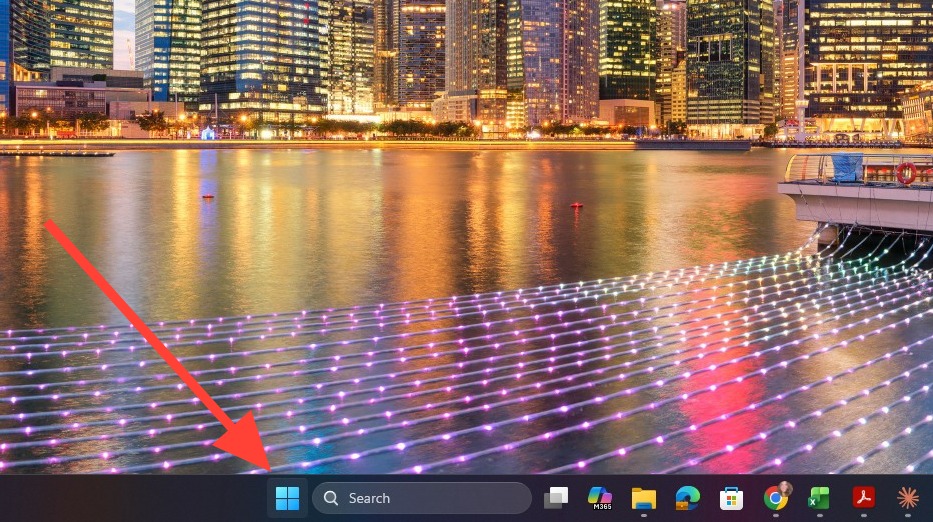
1. Click the Start menu.
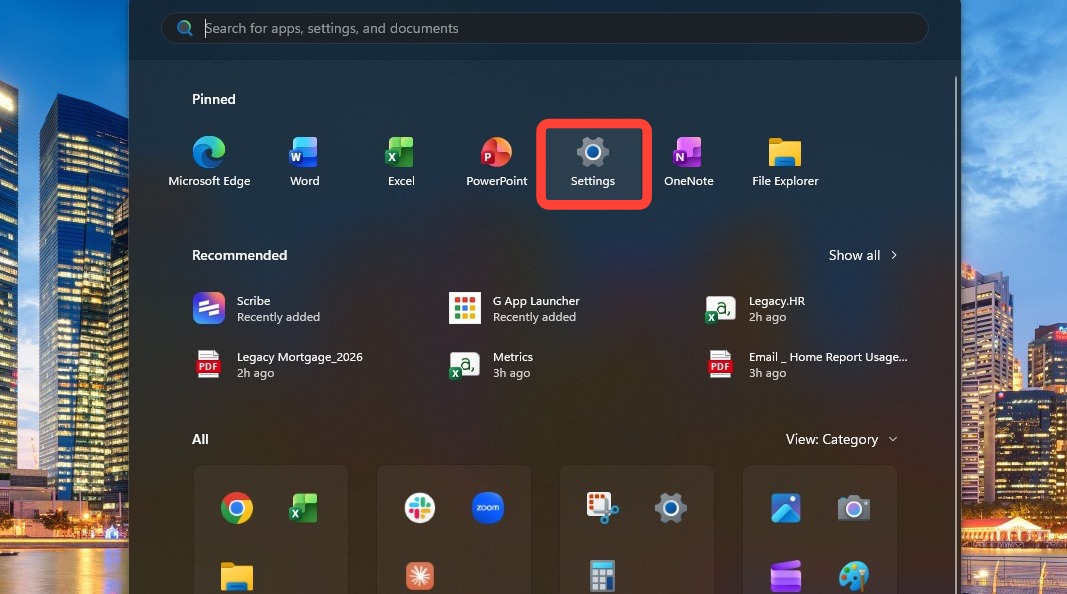
2. Select Settings.
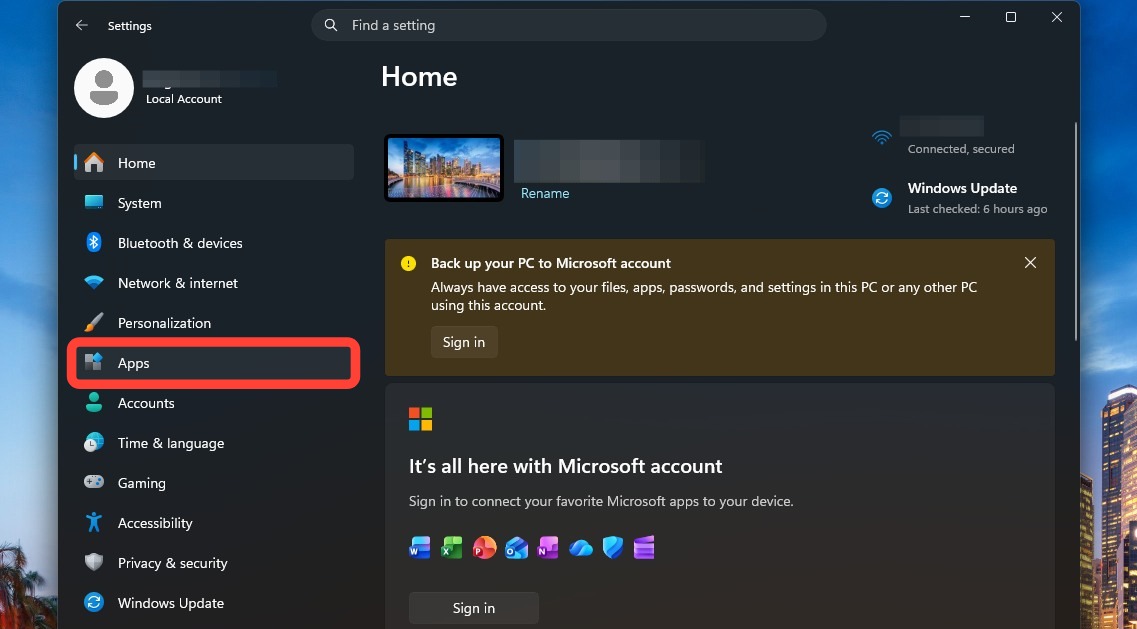
3. Select Apps from the sidebar.
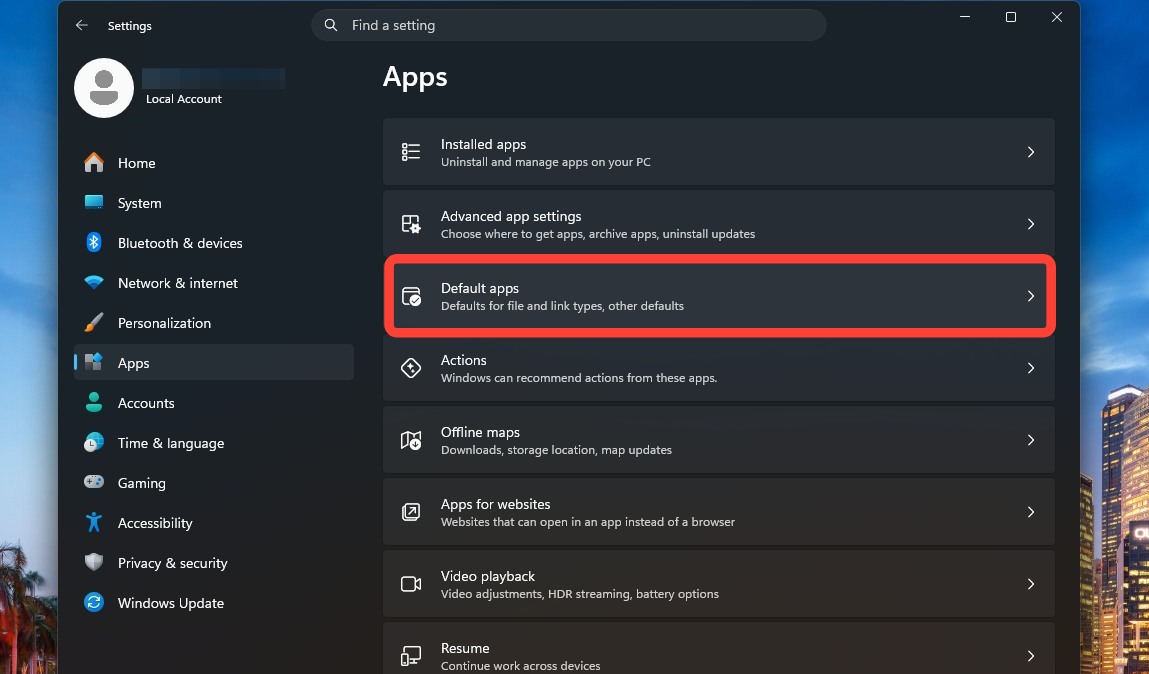
4. Click Default apps.
5. Click the current default email application.
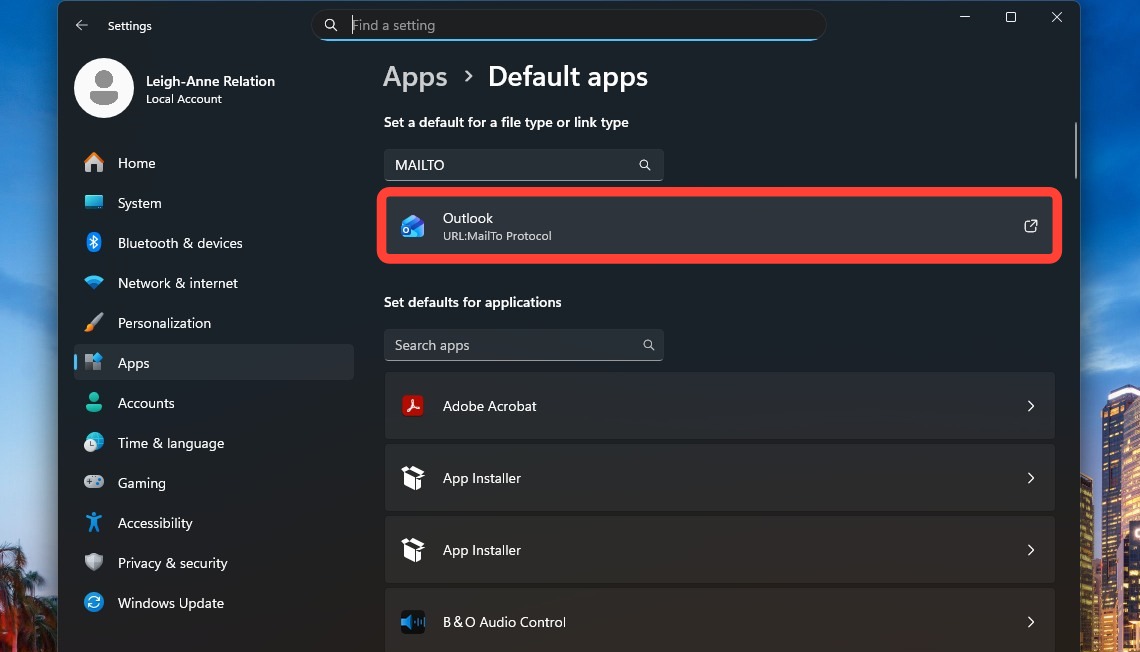
6. Select your preferred email application.
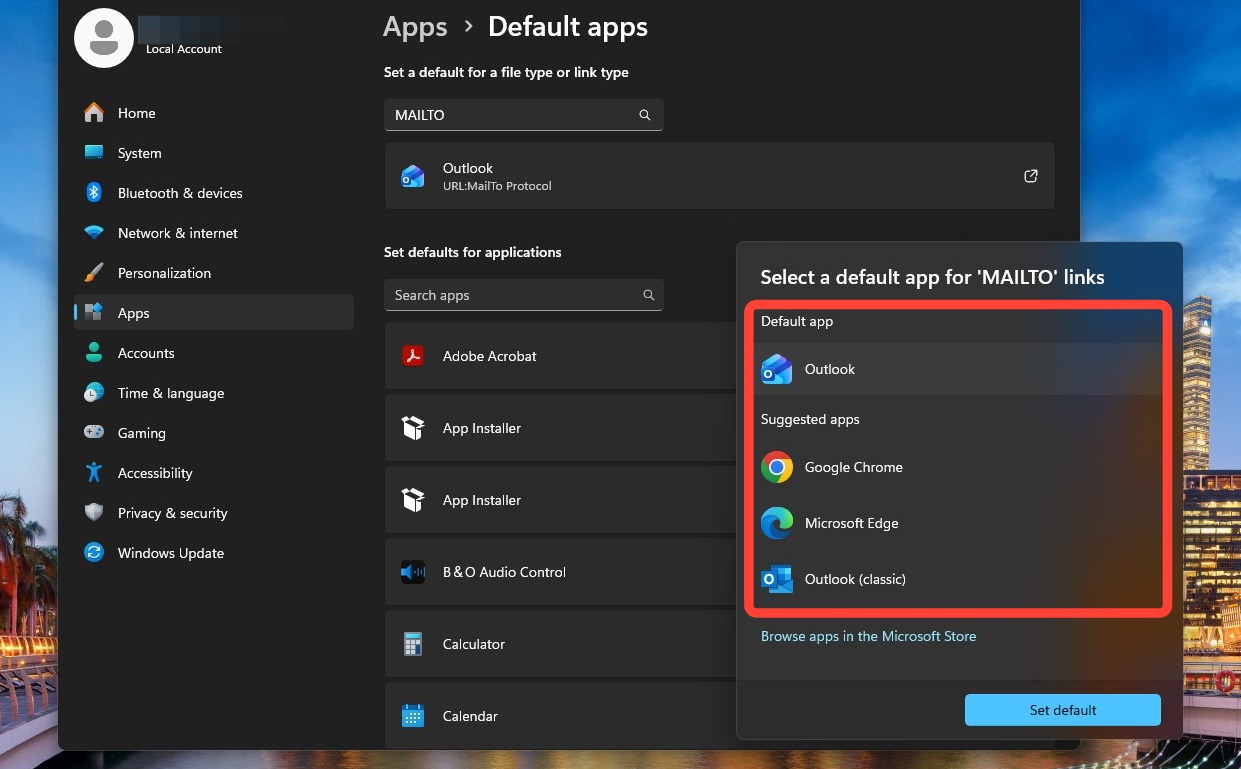
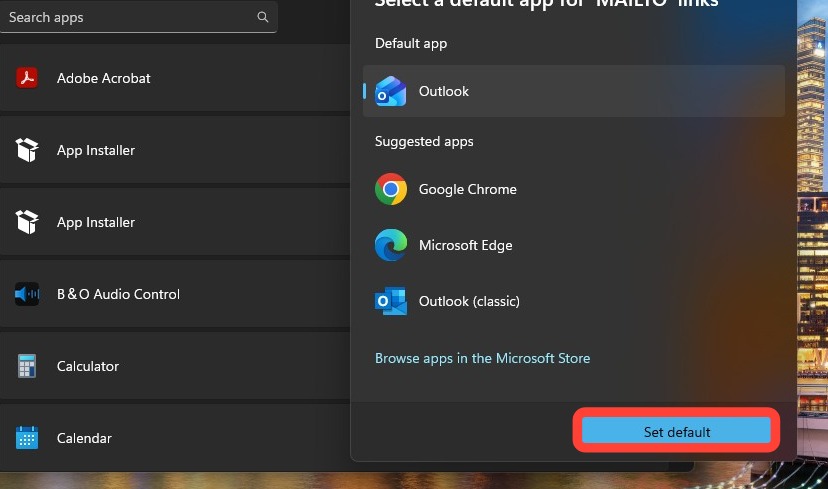
7. Click Set default.
macOS
To set your default email client inside your Mac OS, use the detailed instructions below or visit Apple's help site for additional help: How to set a default email client in macOS.
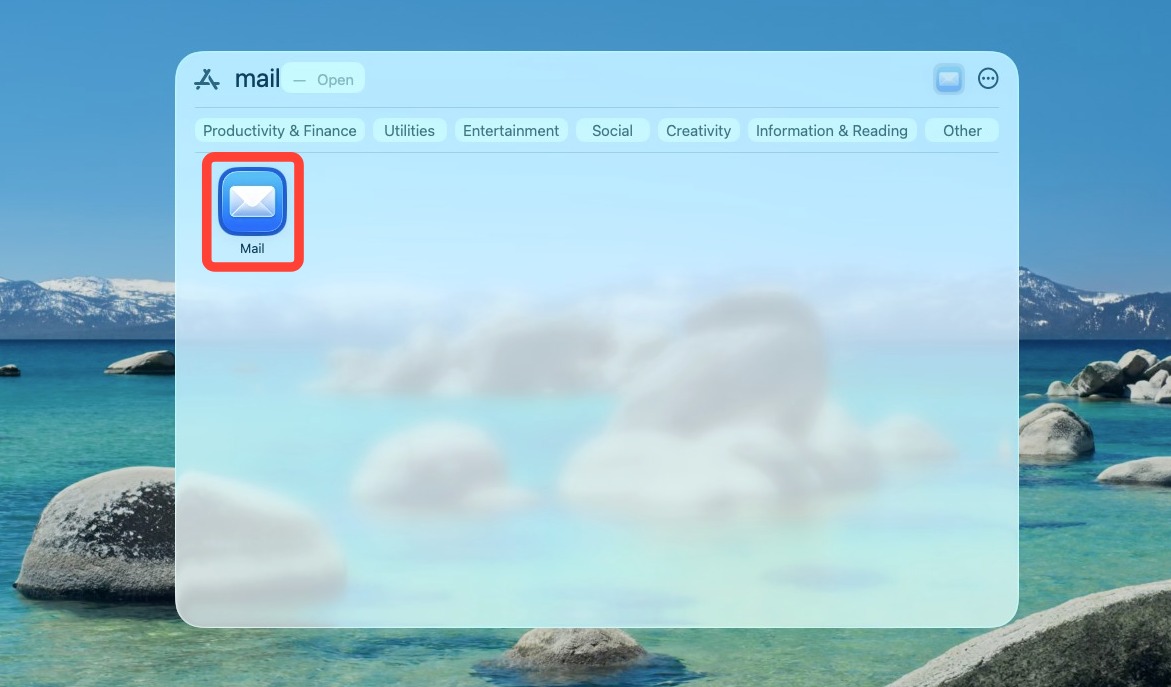
1. Open your Mac's Apps.
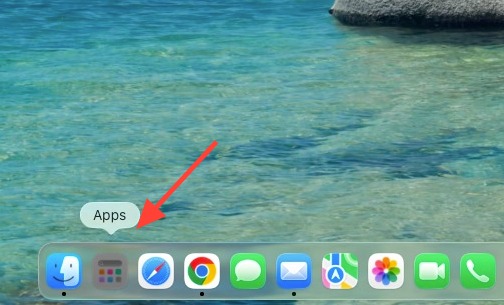
2. Find and open the Mail application.
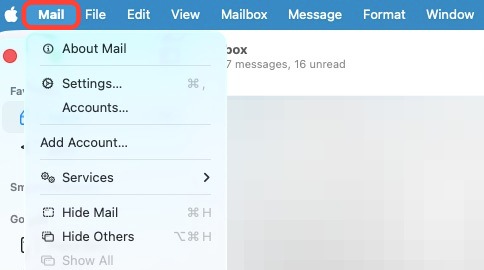
3. Click Mail in the menu bar.
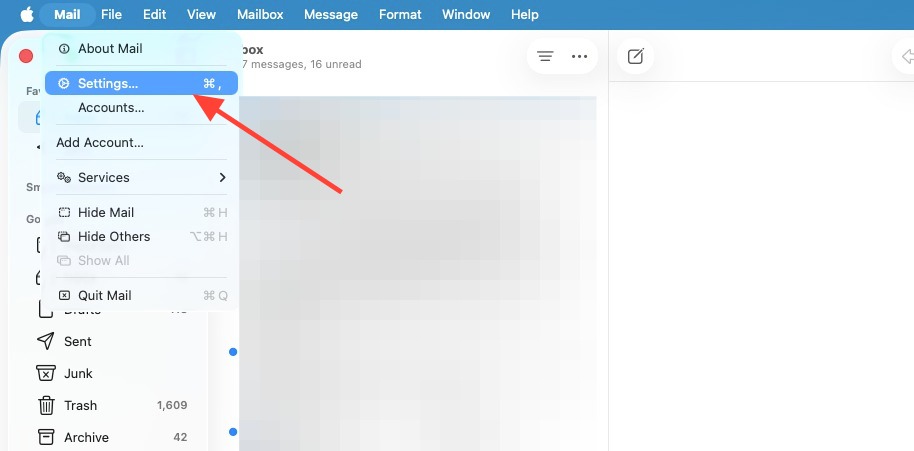
4. Click Settings...
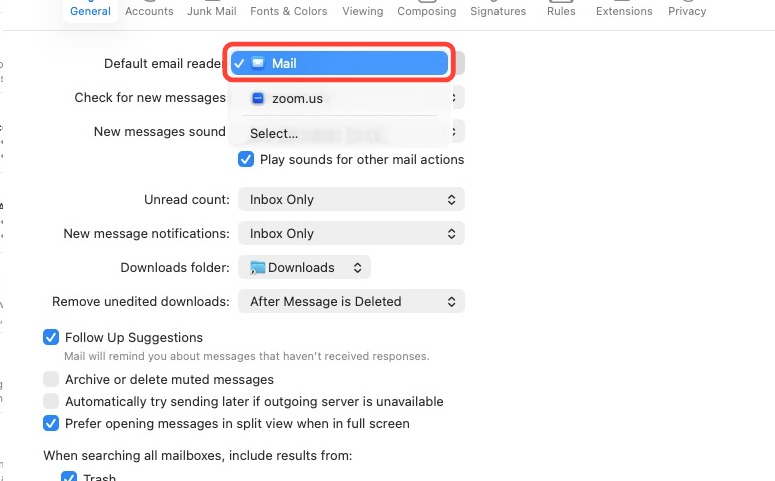
5. Finally, select Mail from the Default email reader dropdown.
Gmail (in Chrome)
To set your default email client inside Gmail when using Chrome, use the detailed instructions below or visit Chrome's help site for additional help: How to set Gmail as your default email client.
1. Click the three dot menu button in the right hand corner of your Chrome browser.
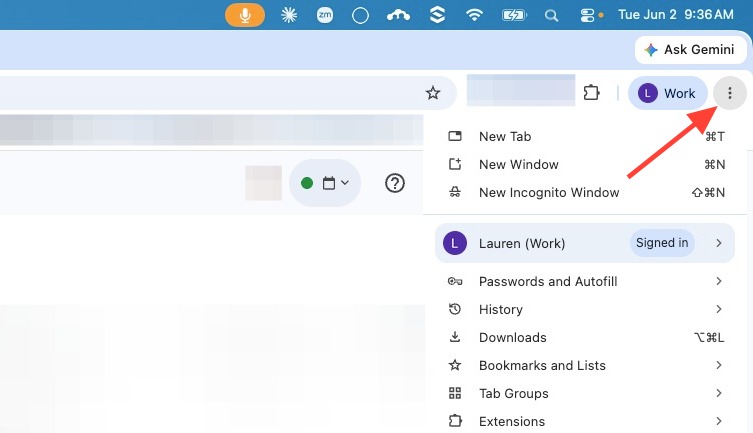
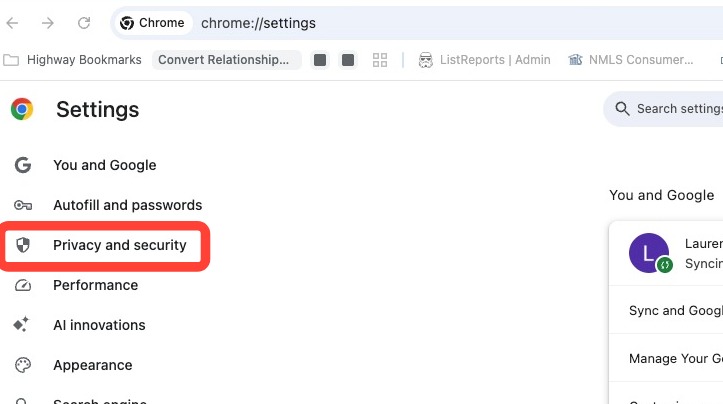
2. Click Privacy and security.
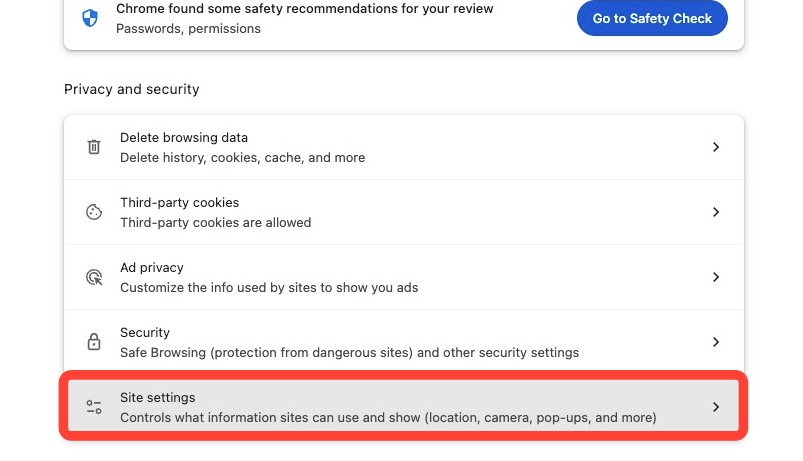
3. Click Site settings.
4. Click the Additional permissions drop-down.
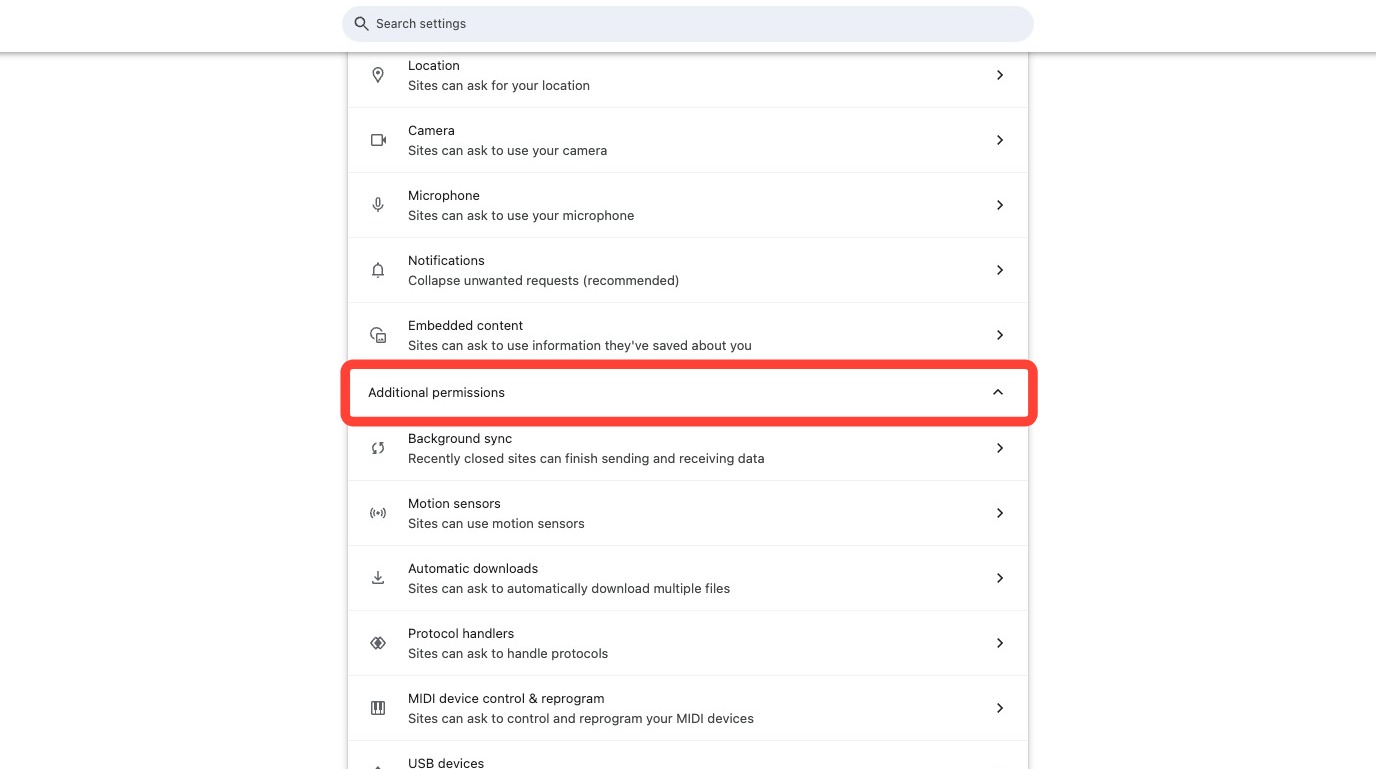
5. Click Protocol handlers.
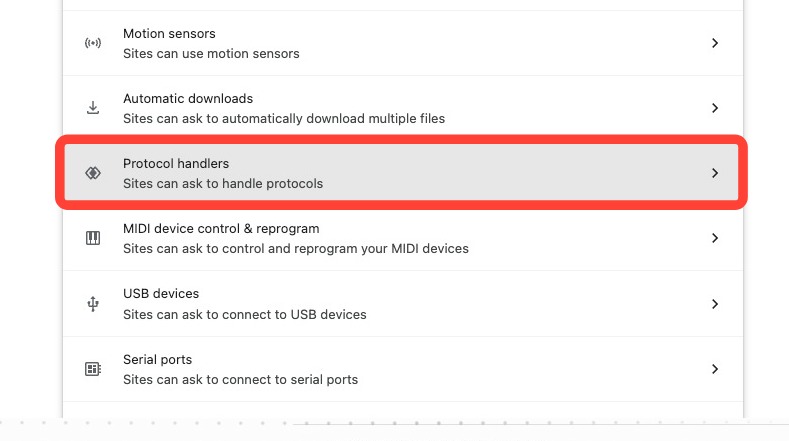
6. Click Sites can ask to handle protocols.
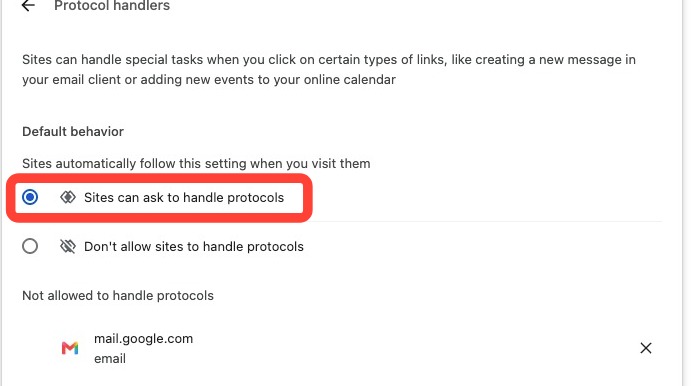
7. Open your Gmail account in a new tab.
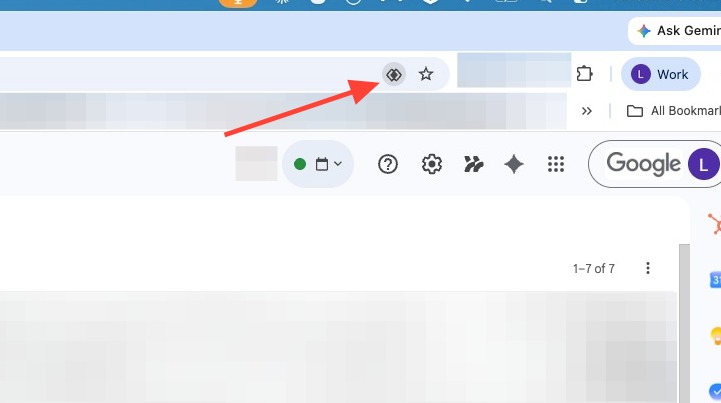
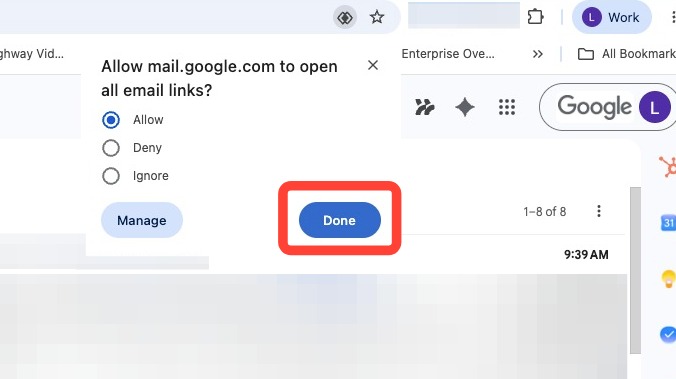
8. Click the protocol handlers icon in the address bar (this icon looks like two overlapping diamonds).
9. Click Allow.
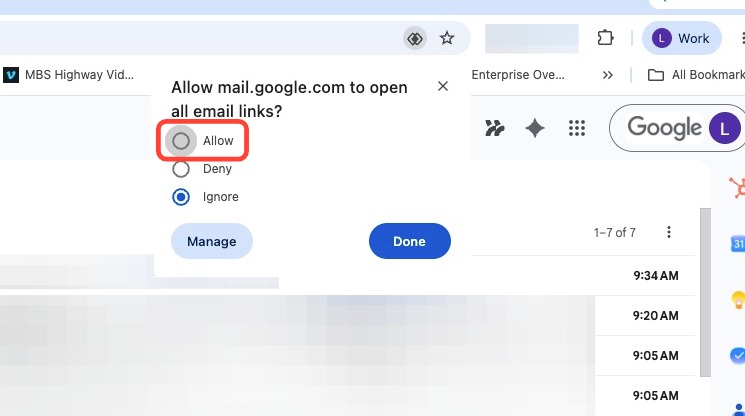
10. Click Done.
Outlook
To set your default email client inside your Mac OS, use the detailed instructions below or visit Apple's help site for additional help: How to set Outlook as your default email client.
Open Outlook, go to File > Options > General, and click Make Outlook the Default Program.
- In Windows, select the Start
button.
- In the Search box, type "Default apps".
- Select Default apps from the suggestions.
- In the Windows Settings app, on the Default apps page, do one of the following:
-
In Windows 10:
- Go to Email.
- Select the current app listed.
- Under Choose an app, select Outlook.
-
In Windows 11:
- Go to Set defaults for applications.
- Scroll to find Outlook, then select it.
- Set the default mail app for file type (.eml, .hol, etc.) and link type:
- Select an item.
- Select Outlook.
- Select Set default to confirm.
-
In Windows 10:
Still Not Working?
After setting your default email client, refresh the page and try the button again. If it still doesn't open, try:
- Restarting your browser
- Clearing your browser cache
- Testing in a different browser
If none of the above resolves it, contact our support team by clicking here.
Related to