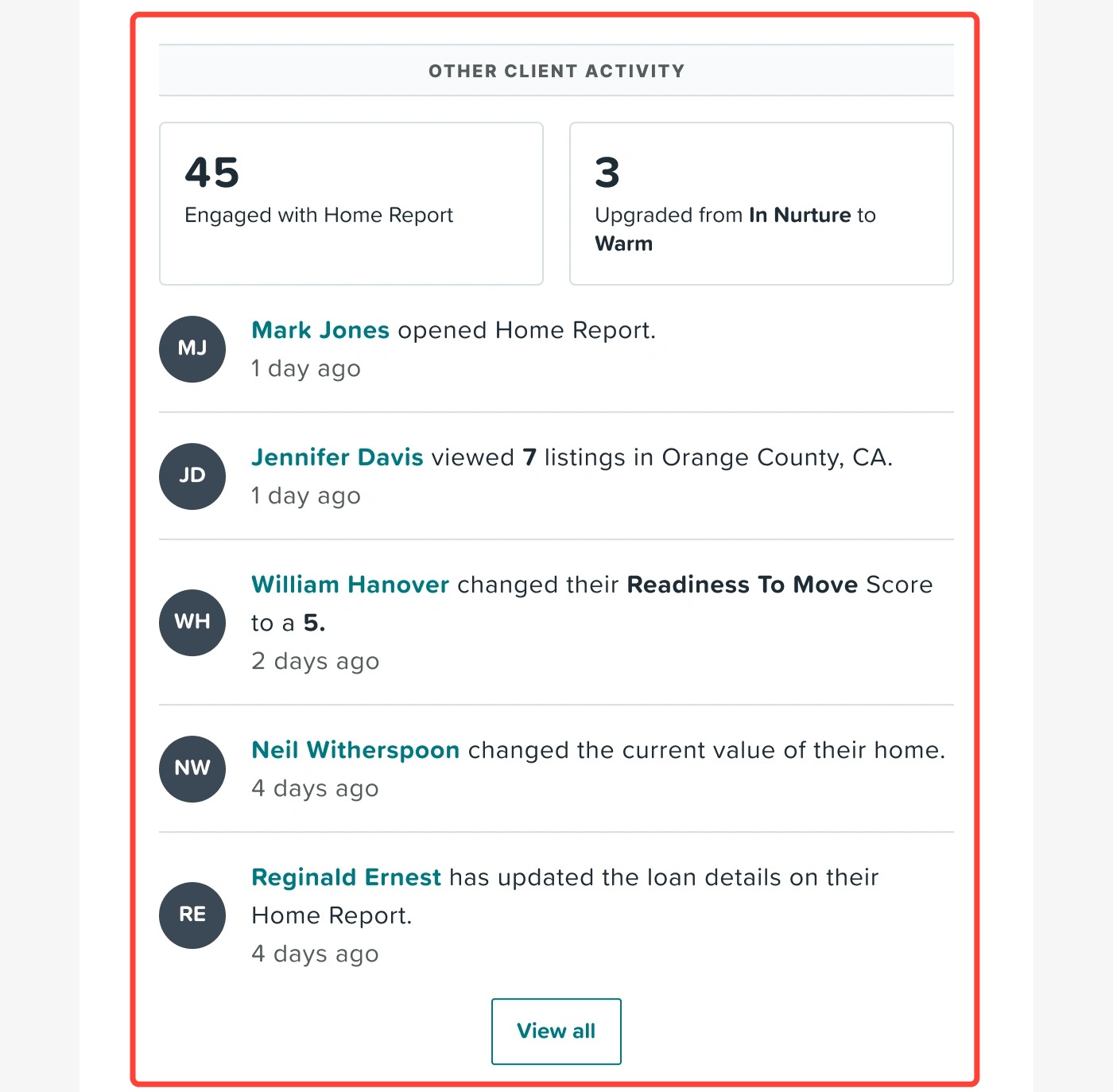
Home Report now includes a built-in lead scoring system that helps you quickly identify which clients are most engaged and most likely to be ready to move. Instead of manually checking individual profiles, you can now see at a glance who deserves your attention today.
This article covers:
- Temperature rankings and what they mean
- How to filter your client list by temperature
- The Client Profile Drawer and AI Buyer Overview
- Client notes
- The updated Weekly Summary Email
Temperature Rankings
Every opted-in client in your Home Report is automatically assigned a temperature based on their recent activity. Temperatures update once per day, so you will always have a current snapshot of engagement without any manual work on your end.
There are four temperature levels:
| Temperature | What Triggers It |
🔥 Hot |
|
☀️ Warm |
|
🌱 In Nurture |
|
N/A |
|
| Note: Temperatures are recalculated once every 24 hours. Changes in client activity will be reflected the following day. |
Filtering Clients by Temperature
You can sort and filter your client list to surface the leads you want to focus on.
From the Main Home Report Tab
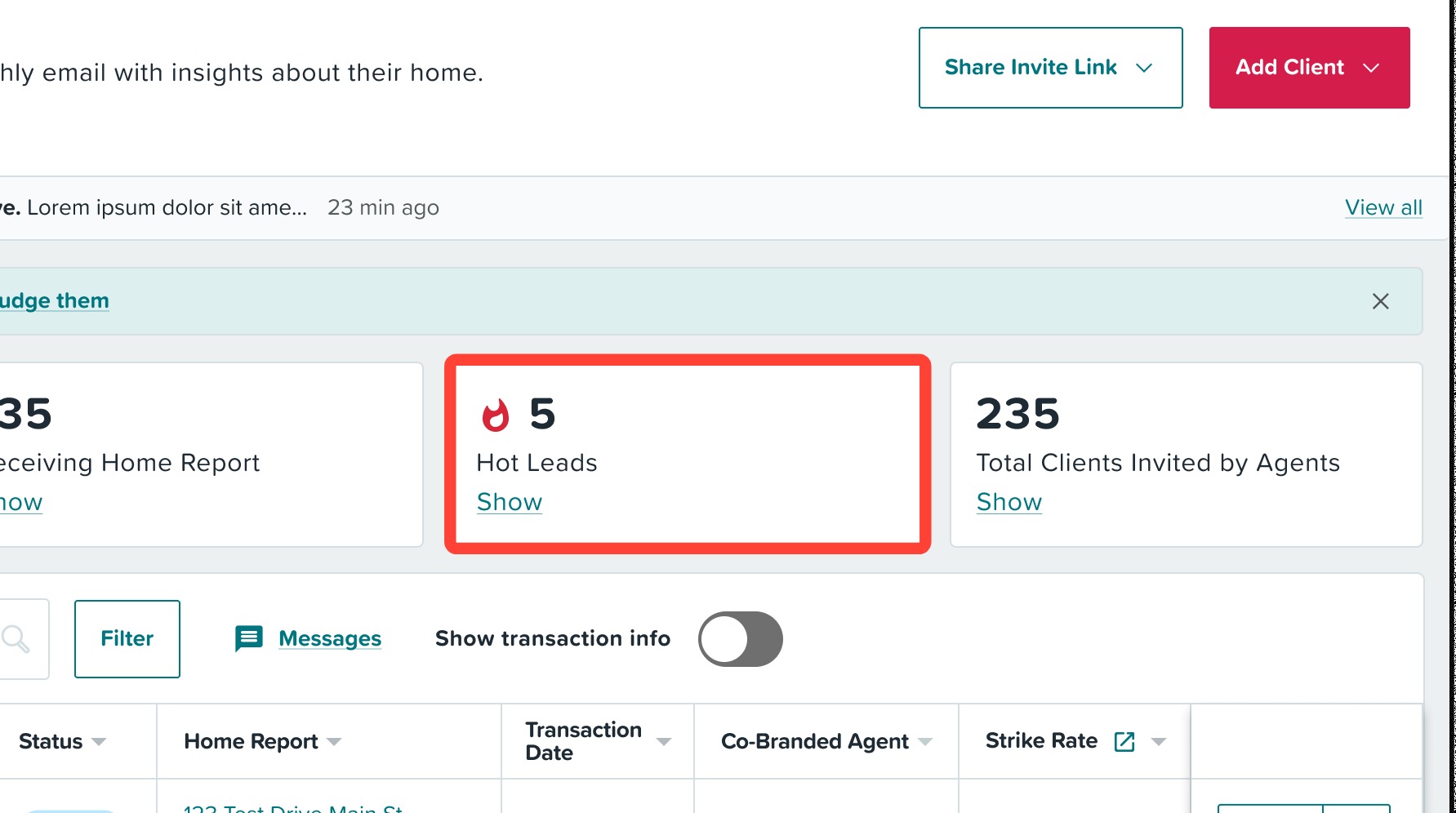
Use the Hot Leads quick-access filter at the top of your client list to filter your hottest leads with a single click.
From the Filter Drawer
To choose any temperature ranking (Hot, Warm, In Nurture, N/A), use the filter drawer as seen below:
- Click Filter.
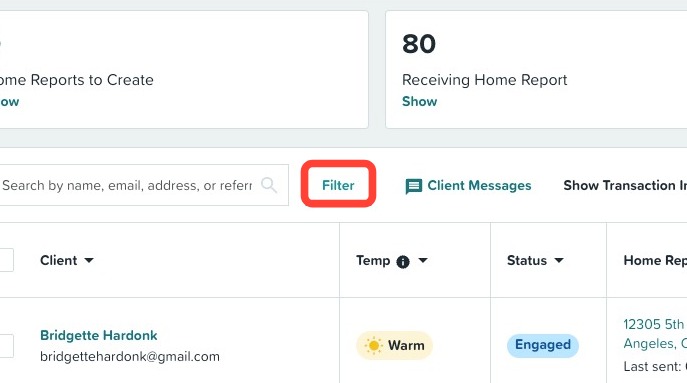
- Select which temperatures you would like to filter by.

- Click Apply.
Real-Time Activity Feed
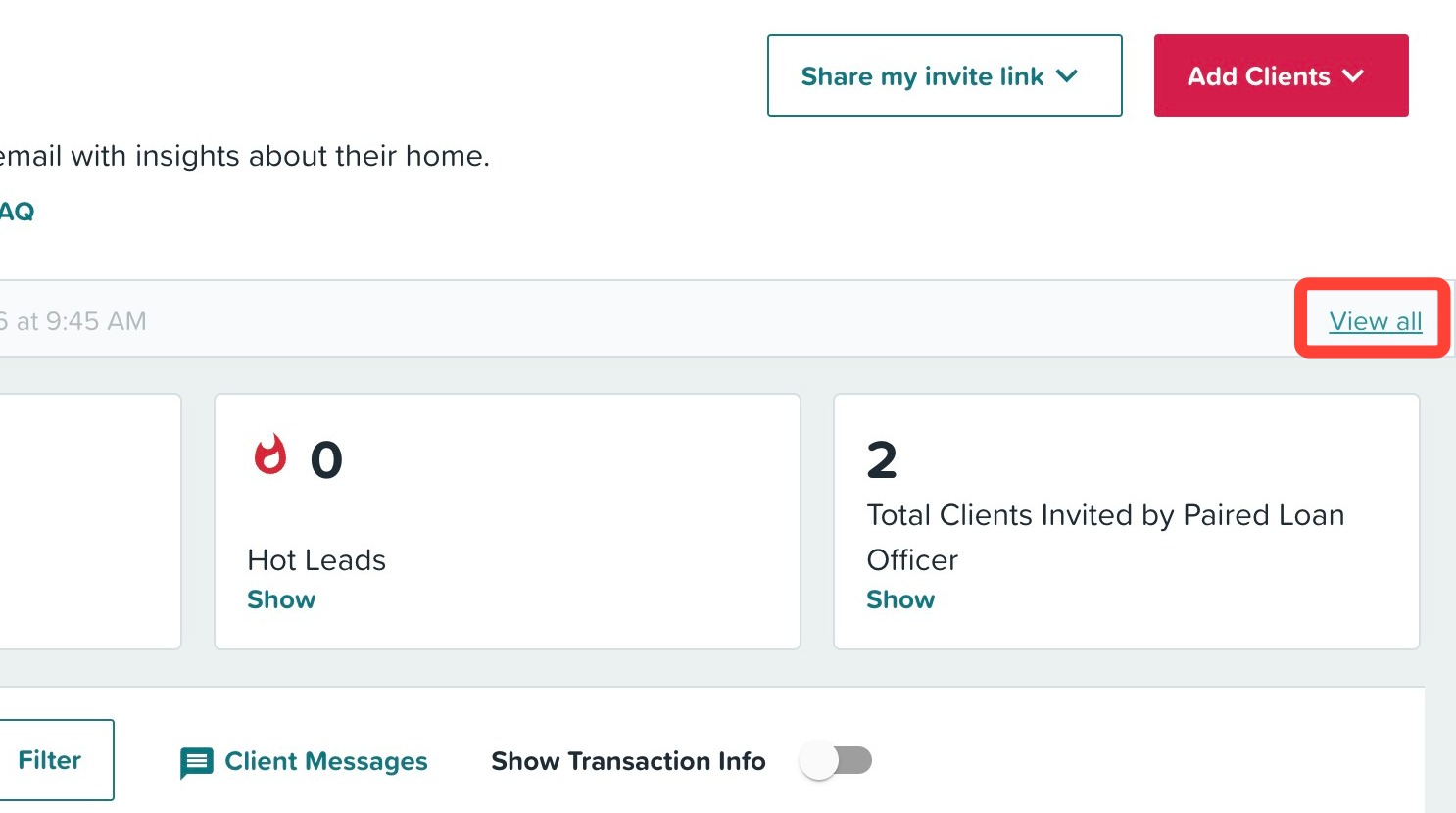
A client activity ticker at the top of your dashboard updates in real time to show signs of engagement as they happen.
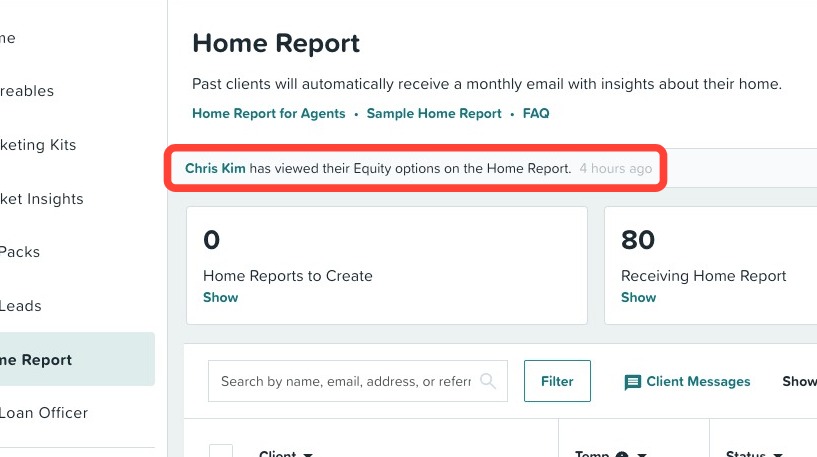
To see a quick view of your clients' activity, click View all on the ticker.
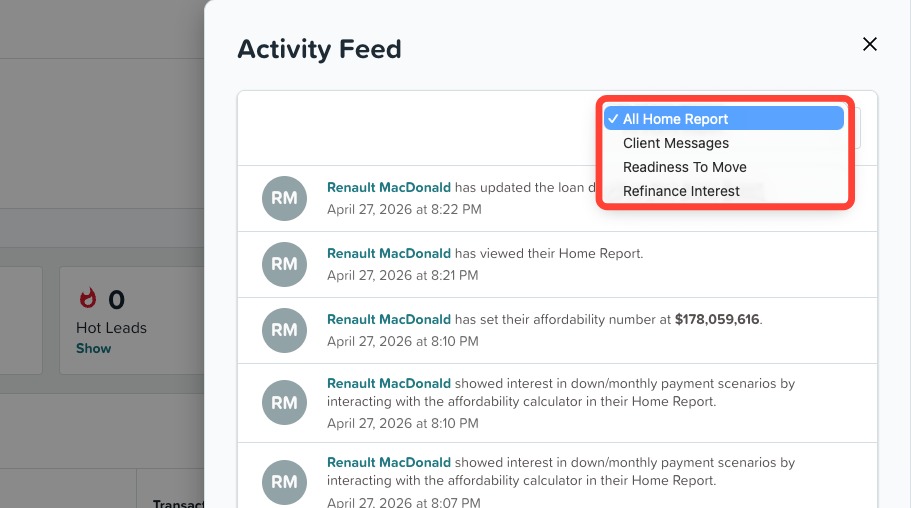
You can filter further on the type of activity you are interested in exploring by clicking on the drop down seen below. You can also click on your client's name to drill deeper into their profile.
View What Triggered a Client’s Temperature
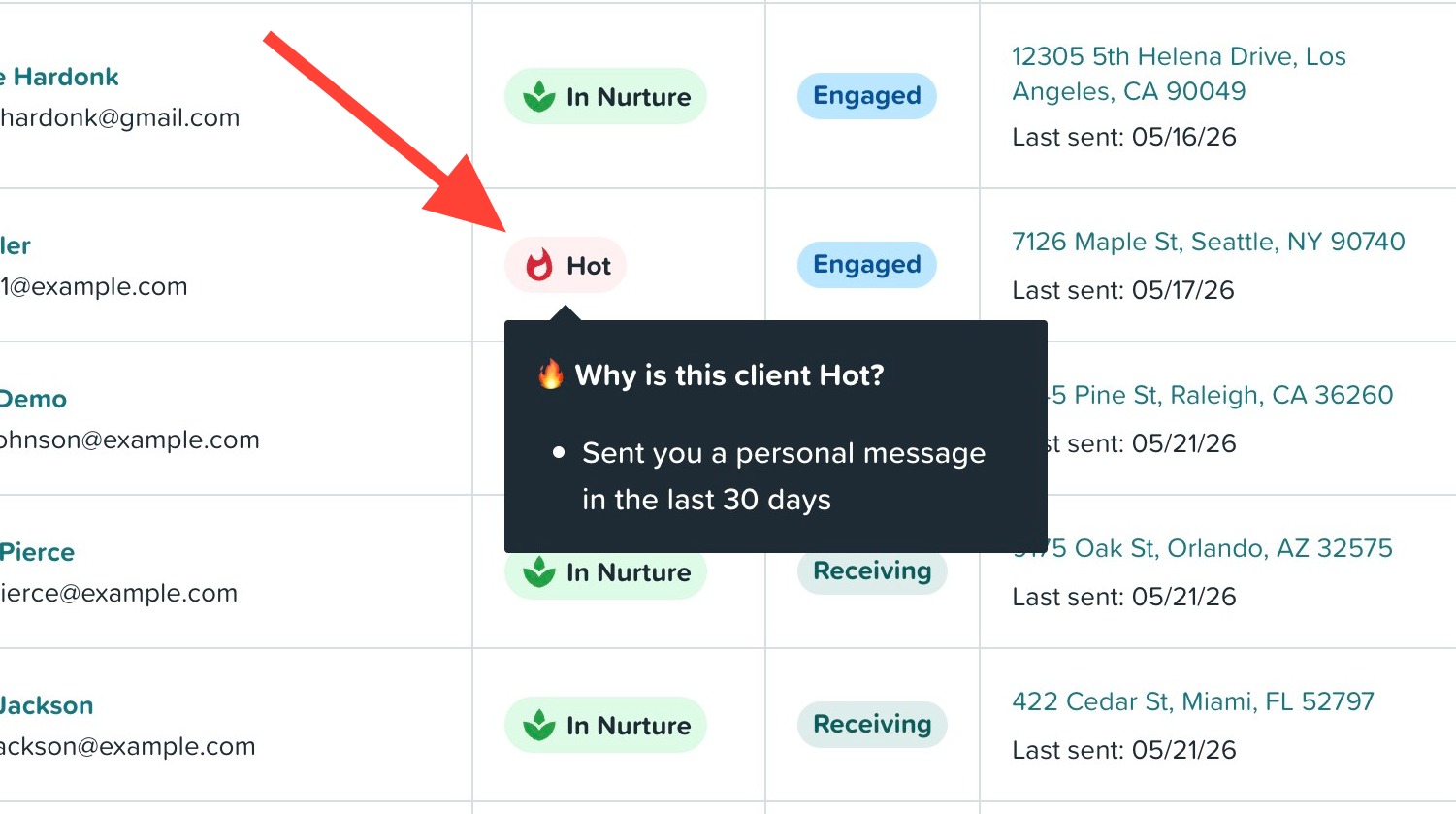
Learn what is driving your client’s temperature to quickly understand who may need follow-up. Hover your cursor over the temperature chip to learn what triggered their temperature ranking. You can click on the temperature to see your client's AI overview for additional context and suggested talking points.
Client Profile Drawer
Click on your client's name or click View in their corresponding row to open their profile. From here you can edit their personal or loan details, change the view or resend their Home Report, see how the client was added to Home Report, review their Readiness to Move Score, view your client's activity, and access the AI Buyer Overview and client notes.
AI Buyer Overview
The temperature tells you who to pay attention to. The AI Buyer Overview tells you why, and gives you three starting points for what to say.
When you open a client's profile, their last 50 activities are analyzed to generate:
- A concise summary of their behavior and likely intent
- Three suggested talking points tailored to their activity
| How it works: The overview is generated using AI and is cached for at least 60 minutes. If you return to the same profile shortly after, you will see the same output. If there is new activity since the last time the overview was generated, the output will reflect those updates. |
Adding Client Notes
You can now add your own notes to any Home Report client profile. This is useful when the temperature signals activity but your personal knowledge of the client tells a different story.
For example, if a client shows as Hot but you recently spoke with them and they are not actively looking, you can log that context so you'll have a reminder next time you review their profile.
| Good to know: Notes are for your reference only. They do not change or override a client's temperature ranking, which is always based on their activity data. |
Updated Weekly Summary Email
Your weekly summary email has actionable information at a glance. Here is what is included:
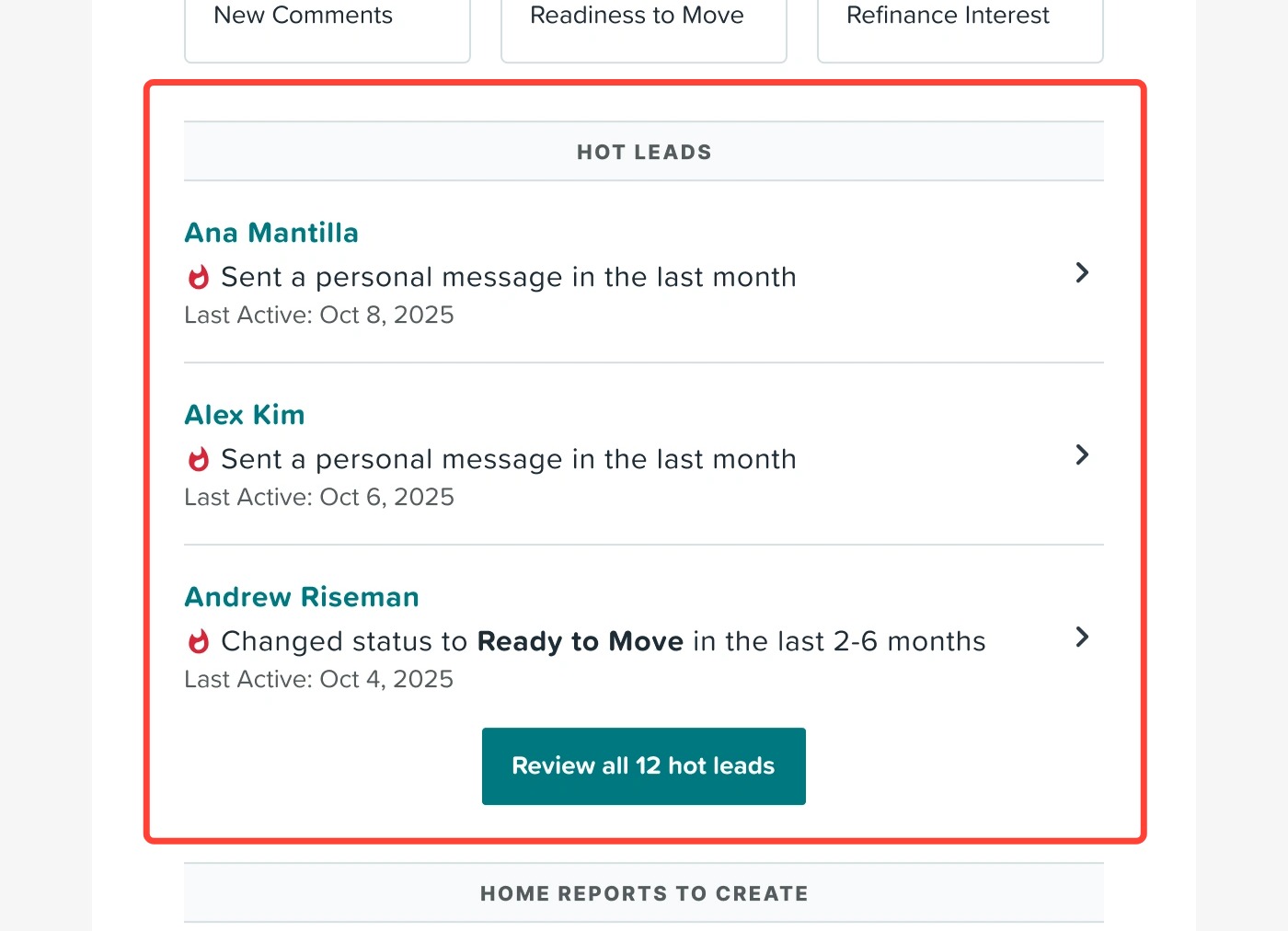
Hot Leads from the Past Week
A dedicated section highlights the clients who became Hot in the last seven days, so you can prioritize your outreach.
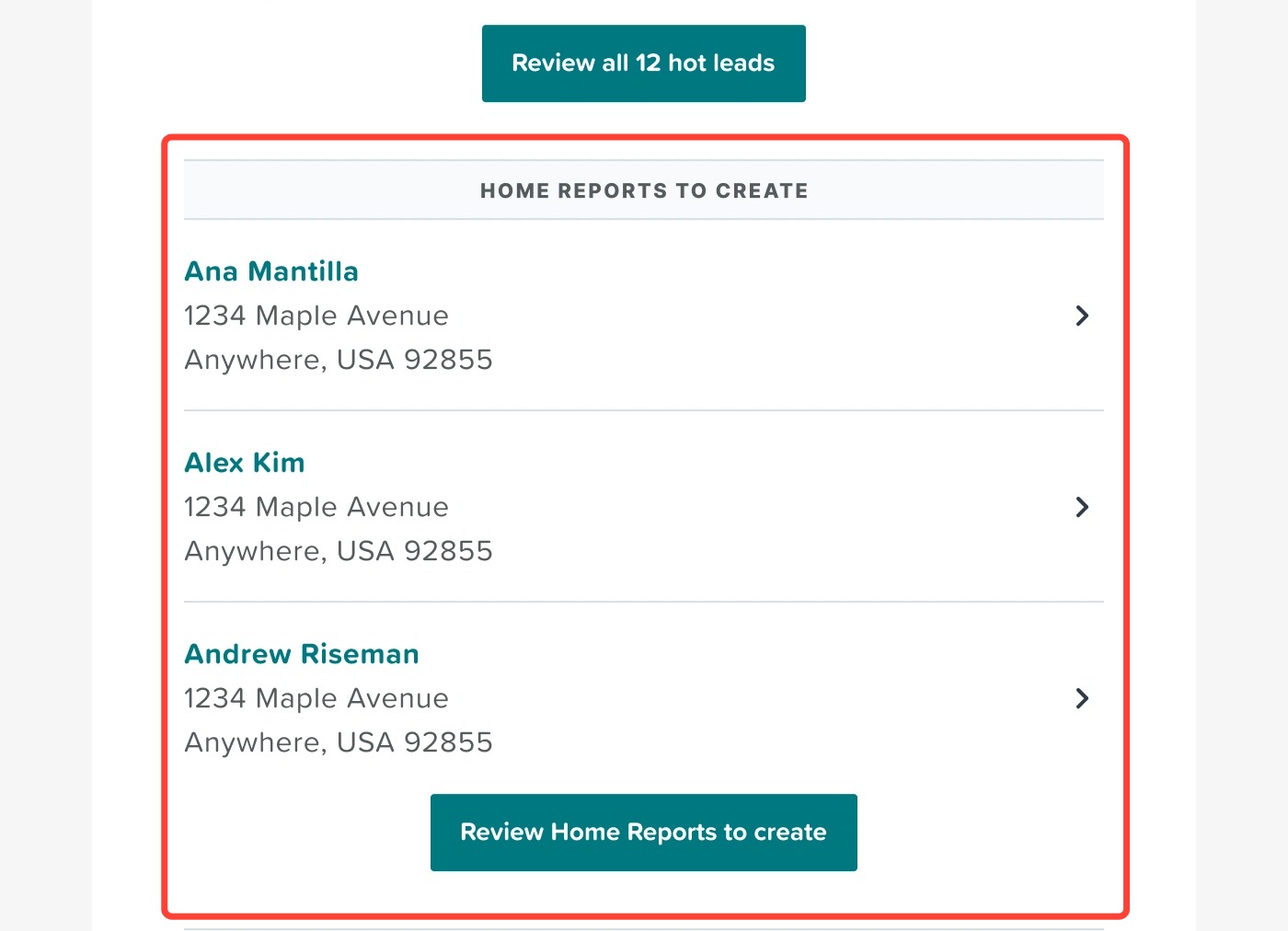
Home Reports to Create
This section shows clients who are not yet on Home Report, prompting you to send invites and grow your engaged audience.
Engagement Metrics
New summary metrics show how many of your total clients engaged with Home Report during the past week and how many moved up to a Warm temperature, giving you a quick read on overall list health.